
An AI agent is only as accurate as what it reads. Point it at everything a user can open, and it may find three files with three different data figures, causing the agent to hallucinate in your business questions.
That’s why, to give grounded answers and reduce AI agent hallucinations, an agent needs a knowledge hub that acts as one approved set of sources, described in business terms, with access rules intact.
Amazon Quick Spaces handle that part by putting up a centralized data hub that groups one team’s dashboards, Topics, knowledge bases, files, and actions. A custom chat agent linked to it answers from those resources instead of from everything the user can open.
This guide shows how to set up Amazon Quick Spaces right, step by step. It covers connecting your databases and documents, writing instructions the agent can’t misread, and testing it before go-live.
Why do AI agents give wrong answers on business data?
Because the model is left guessing. It has to work out what a field means, how two tables join, and which source to believe, and every guess is a chance to be wrong. Grounding AI agents in business data means removing those guesses before anyone asks a question.
Gartner saw this coming. In February 2025, it predicted that through 2026, organizations will abandon 60% of AI projects that aren't supported by AI-ready data. Then, in May 2026, it said organizations that prioritize semantics in AI-ready data will raise agentic AI accuracy by up to 80% by 2027.
On Amazon Quick projects, the causes tend to land in five buckets:
-
Data split across systems. Your pipeline might be in Amazon RDS or SQL Server, with campaigns over in Google BigQuery and the contract terms buried in PDFs on S3 or SharePoint. Give the Amazon Quick chat agents no single boundary, and it answers from whatever it finds first.
-
Fields with no business meaning. By default, the agent only sees raw column names and data types. It doesn’t know what a field means or how your team uses it. AWS’s own guidance says this context has to be added through dataset enrichment.
-
Undefined joins. If the relationships between tables aren’t defined, the agent may have to guess how they connect, for example by matching similar column names. A wrong guess can produce duplicate rows or leave some rows out, which disturbs the results.
-
Vague instructions. A broad goal like “help the sales team” doesn’t tell the agent what pipeline, win rate or fiscal quarter means for your business. Without clear definitions, it may use generic ones that don’t match how your team reports.
-
No guardrails. If there are no instructions for handling missing data or off-topic questions, the agent may answer from general knowledge instead of your data. That can lead to answers that sound confident but aren’t grounded in your business.
What is Amazon Quick Spaces?
AWS describes a Space as "a collection of data and Quick resources scoped for a particular team or domain." Link a custom chat agent to one, and the agent answers from what's in that Space plus general model knowledge, instead of from everything the user happens to have access to.
Scoping sets the boundary. An Amazon Quick agent connected to a Sales Space is limited to the content in that Space. Dashboards and datasets outside it, such as finance reports, aren’t available to it unless someone explicitly adds them. Leave an agent unlinked, and it automatically searches everything the user can open. In the Amazon Quick console, you’ll find Spaces in the left navigation menu.
What can you add to Amazon Quick Spaces?
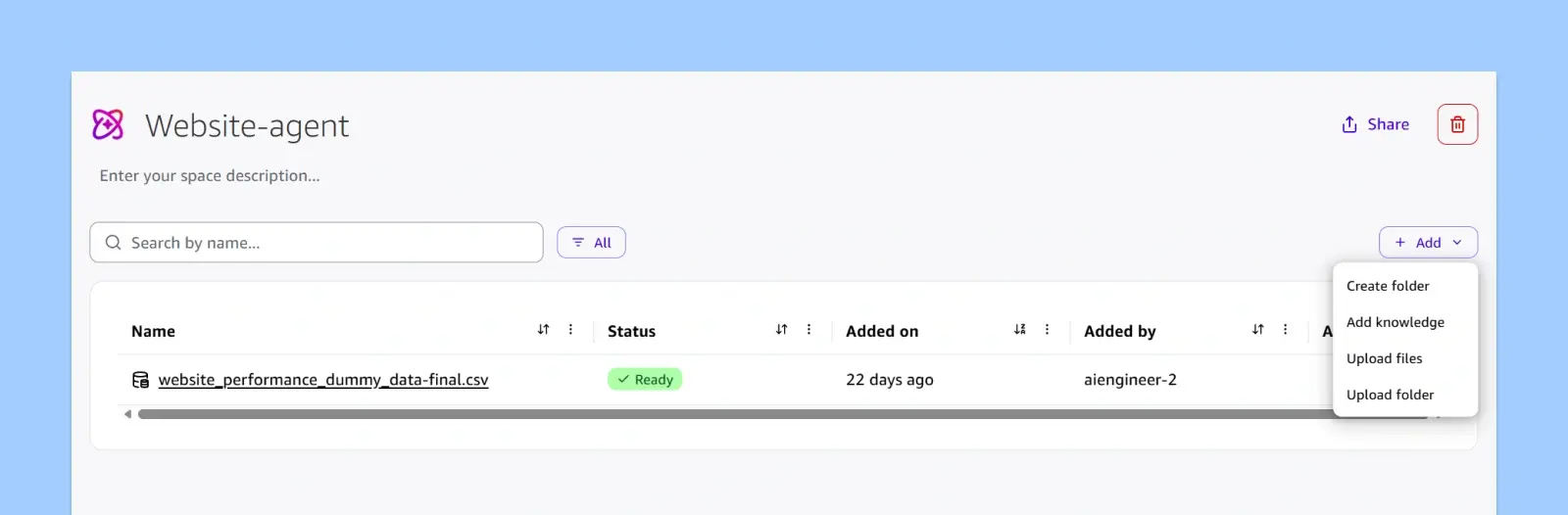
Open a Space, and the Add knowledge menu gives you five resource types:
- Dashboards: The published Quick Sight dashboards your team already trusts. Adding them gives the agent access to the same views and metrics your team reviews.
- Knowledge bases: Unstructured data such as contracts, policies, and playbooks, indexed in Quick Index. Sources can include Amazon S3, SharePoint Online, OneDrive, Google Drive, Confluence Cloud, or a website that Quick crawls.
- Actions: Action connectors. Add some to a Space, and those are the only actions Quick considers when the Space is your chat context.
- File uploads: Drag files in directly. A Space can hold up to 10,000 files as long as its total storage stays under 10 GB. PDF, Word, and PowerPoint files can be up to 500 MB each, and all other supported file types are capped at 50 MB.
- Topics (the most important resource for data questions): The semantic layer for AI agents that connects multiple datasets. It defines how they join and resolves terms that could mean different things across them. The agent uses Amazon Quick Topics to answer plain-English questions that span datasets.
- Datasets: Individual Quick Sight datasets linked directly to the Space. They’re enough for questions that one table can answer.
Share once, not resource by resource
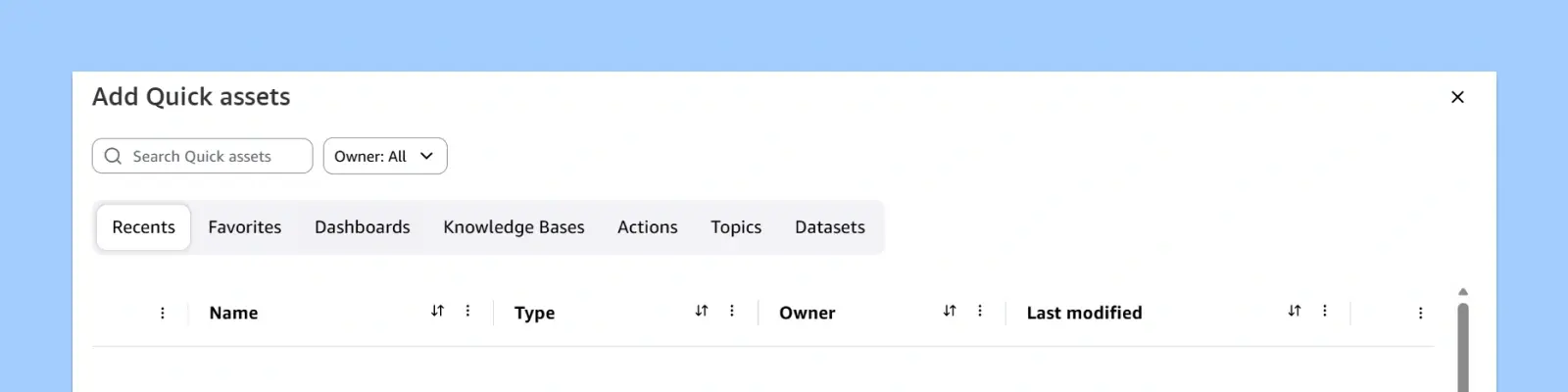
When you share Amazon Quick Space access, it all happens in one dialog: Share space. You add people or groups and make each an Owner (create, edit, share, delete) or a Viewer (look around, ask questions, download files).
Spaces vs Topics vs chat agent settings: what goes where?
Each instruction belongs to exactly one layer, and putting it in the wrong one is a common cause of drift. Metric logic belongs with the data, scope belongs in the Space, and behaviour belongs in the agent. Here’s where each piece of context goes, from the data up to the agent.
|
Layer |
Where it lives |
What goes there |
|
Dataset enrichment |
Quick Sight dataset |
Dataset and column descriptions, plus custom instructions for metric definitions and aggregation rules |
|
Topic |
QuickSight Topic |
Relationships (join keys) across up to 12 datasets, plus instructions for ambiguous terms and cross-dataset logic |
|
Space |
Amazon Quick Space |
The dashboards, Topics, knowledge bases, files and actions the agent can use |
|
Persona instructions |
Chat agent |
Agent identity, primary tasks, and (our recommendation) which sources to use for which questions |
|
Communication style |
Chat agent |
Tone, response format, length |
|
Reference documents |
Chat agent |
Files the agent always keeps in context. We use them for guardrails, approved definitions, out-of-scope handling and fixed templates |
|
Customization |
Chat agent |
Welcome message, suggested prompts |
To keep these layers from contradicting each other, define each thing once, at the lowest layer it applies to. Put facts about a single dataset, such as grain and aggregation rules, in dataset enrichment. Put logic that spans datasets in the Topic. Agent-level settings should shape behavior, such as tone, scope, and guardrails.
Topics vs Dataset Q&A: when should you use which?
Topics aren’t the only way an Amazon Quick chat agent can answer data questions. Dataset Q&A, which AWS made generally available in May 2026, lets users ask plain-English questions of a structured dataset directly, with no Topic to build first. Quick turns the question into SQL and runs it on the full dataset, without sampling rows.
Both routes stay governed. Dataset Q&A respects the row-level and column-level security (RLS and CLS) already set on the dataset, and each answer comes with an Explanation that shows the generated SQL, filters, and assumptions. The real difference is how much business context you curate up front.
| Aspect |
Amazon Quick Topics |
Dataset Q&A |
|---|---|---|
|
How it works |
Joins up to 12 related datasets through declared relationships |
Queries datasets directly; with several selected, it routes each question to the most relevant one |
|
Setup effort |
Relationships, synonyms, and Custom Instructions defined by an author |
None required; dataset enrichment is optional |
|
Best for |
Recurring questions with fixed metric definitions |
Ad-hoc exploration beyond existing dashboards and Topics |
- Use a Topic when the answer needs joined tables, definitions like win rate can’t drift, or many users ask the same question in different words.
- Use Dataset Q&A when the question lives in one well-structured dataset, or analysts are exploring before you know what’s worth curating.
Rule of thumb: If the answer needs several datasets and the relationships between them, use a Topic. If the question sits in a single dataset and you want answers quickly, use Dataset Q&A.
How to bring structured and unstructured data into one Space?
Amazon Quick Spaces can hold both kinds of data side by side, which is what makes conversational analytics for structured and unstructured data possible in a single chat. Each kind enters through a different route:
- Structured data (databases and warehouses) is connected as QuickSight datasets. The datasets are enriched with business context and joined in a Topic.
- Unstructured data (PDFs, policies, wikis) is indexed as knowledge bases, or uploaded directly if there are only a few files.
Here's how we set it up, in six steps, along with the spots where projects tend to slow down.
Structured sources: Amazon RDS, SQL Server, Google BigQuery
1. Connect your databases: SQL Server (2012 and up) and Google BigQuery both have connectors. RDS instances show up through autodiscovery, and there's support for Aurora, MySQL, PostgreSQL, MariaDB, and Oracle too.
The catch is freshness:
Direct Query support depends on how the agent reaches your data. Single-dataset Q&A in chat supports Direct Query against Redshift, Athena, Aurora PostgreSQL, and S3 Tables. Multi-dataset Topics, which this setup relies on, support Direct Query against Redshift, Athena, S3 Tables, Snowflake, and Databricks, and a single Topic can’t mix SPICE and Direct Query datasets. Your SQL Server tables, BigQuery data, and most RDS sources aren’t on either list, so they’re answered from SPICE. So set a SPICE refresh schedule that matches how current your answers need to be.
2. Explain your data to the agent: Fill in the dataset description, the column descriptions, and the dataset's Custom Instructions (AWS allows up to 5,000 characters each for the dataset description and Custom Instructions, and up to 500 characters per column description). If your team already wrote these definitions in a tool like dbt, Databricks, or Alation, export them and upload the file so no one has to retype them.
Two warnings from the field:
- Everything you write here is readable by anyone who can view the dataset, so leave out anything sensitive.
- It takes time. A table with 300 columns needs 300 explanations.
3. Build a Topic and declare relationships: This is where QuickSight Topics relationships come in. Often the answer to one question needs data from several tables, for example, sales from one table and customer names from another. A Topic groups those tables, and on its Relationships tab you say which column links them, such as “match customer_id in Sales to customer_id in Customers.”
Quick has a few rules:
- All tables in one Amazon Quick Topic must use the same mode, either all Direct Query or all SPICE.
- The links can’t go in a circle (A → B → C → A).
- The linking columns should be the same type, such as both numbers, and shouldn’t have blanks.
Unstructured sources: S3, PDFs, SharePoint, & uploads
4. Index documents as knowledge bases: You connect Quick to where those files are stored, such as S3, SharePoint, OneDrive, Google Drive, or Confluence. Quick can also read a website. Quick then reads and organizes the files so the agent can search them. The result is called a knowledge base.
Two shortcuts:
- If your company already built a document search in Amazon Q Business or Amazon Bedrock, you can connect it directly instead of starting over.
- If you only have a few files that rarely change, upload them straight into the Amazon Quick Space and skip the connector.
There are two warnings:
-
Updates aren’t instant. According to AWS, knowledge base data refreshes daily by default. How fresh an answer is depends on the sync schedule you configure and on the source permissions Quick can read. If someone edits a contract this morning, the Amazon Quick chat agent may not see the change until the next sync, so shorten the schedule or run Sync now for fast-changing sources.
-
Quick reads everything in the folder. That includes blurry scans, old drafts, and files like “v2_final_FINAL.” The agent might quote any of them to a user, so clean up the folder before connecting it to your Amazon Quick knowledge base.
Assemble and share the Space
5. Create the Space and add resources: Now you create the Space and add what the agent should use:
- the Topic for questions that need several tables
- the knowledge bases for questions answered by contracts, policies, and other documents
- any dashboards your team trusts
- any actions, which let the agent do tasks in other tools, like creating a ticket
Point to Remember:
20 per resource type is the ceiling. Thus, try avoiding adding extra dashboards, as it might become another place for the agent to find a number that disagrees with the Amazon Quick Topic.
6. Share the Space: Share the Space with groups (like “Sales Team”) instead of individual people, so access is easier to manage. Each group gets one of two roles:
- Owner: can edit and manage the Space
- Viewer: can use it and ask questions
How do you configure a chat agent on top of a Space?
Start under Chat agents and click Create chat agent. You can type a description and let Quick Generate a first draft, or hit Skip and build it yourself.
Amazon Quick custom chat agent setup happens in a builder with six parts: Agent persona, Communication style, Reference documents, Knowledge sources, Actions, Customization. Setting them by hand beats untangling a generated draft.
The part people rush is Knowledge sources, which could be a mistake. With nothing linked, the Amazon Quick chat agent uses model knowledge plus every resource the user can open. Link the Space, and it's limited to that Space's resources plus model knowledge.
What goes in the system prompt?
Quick doesn't call it a system prompt. The equivalent is Persona instructions. It covers the agent's role, tasks, instruction style, and how it should use its sources.
For example, a Sales Funnel Analyst can compare funnel performance, explain metric changes, and answer data questions using the linked sales Space.
"You're the revenue team's funnel analyst. You compare stages, regions and periods, explain why a number moved, and answer pipeline questions. Pipeline numbers: Sales Pipeline Topic. Contract terms: Contracts KB. Always say where an answer came from, and don't go outside the linked Space. If the data isn't there, say so instead of estimating."
How to apply guardrails?
AI agent guardrails in Amazon Quick work best when they’re split across two places.
Reference documents hold the rules that must never change. AWS keeps these files active in the agent’s context for every conversation. That makes them the right place for critical business rules, approved metric definitions, fixed response templates, and instructions for handling out-of-scope questions.
Persona instructions set the agent’s overall behavior. Use them to tell the agent to:
- base its answers on the data and documents in the linked Space
- say clearly when data is missing, instead of guessing
- avoid claims it can’t support with a source
Guardrails control what the agent says, not what users can see. Data access is always governed by each user’s permissions in Amazon Quick.
How to control answer format and style of your AI Agent?
In Amazon Quick, response style presets exist as pre-configured profile options that help you customize how your AI chat agents communicate and format answers.
Communication style gives you three starting points:
- Executive preset. For the leadership readout; AWS tunes it for high-level business communication and strategic insight.
- Technical preset. For analysts who'd rather see the reasoning than a summary.
- Creative preset. AWS describes it as the standard configuration for general-purpose interactions, a sensible starting point for everyday team questions.
Every preset just pre-fills Tone, Response format, and Length, so treat them as defaults you'll tweak.
How to share the Amazon Quick Chat Agents?
Amazon Quick Suite agents are private by default. Use the Share option to grant users or groups Owner or Viewer access. Sharing the agent does not automatically grant access to its underlying data sources. Add a welcome message and relevant suggested prompts, such as “How did last month’s sales perform?”, to help users get started.
The NeenOpal Blueprint: how to configure Amazon Quick Spaces and agents for grounded answers
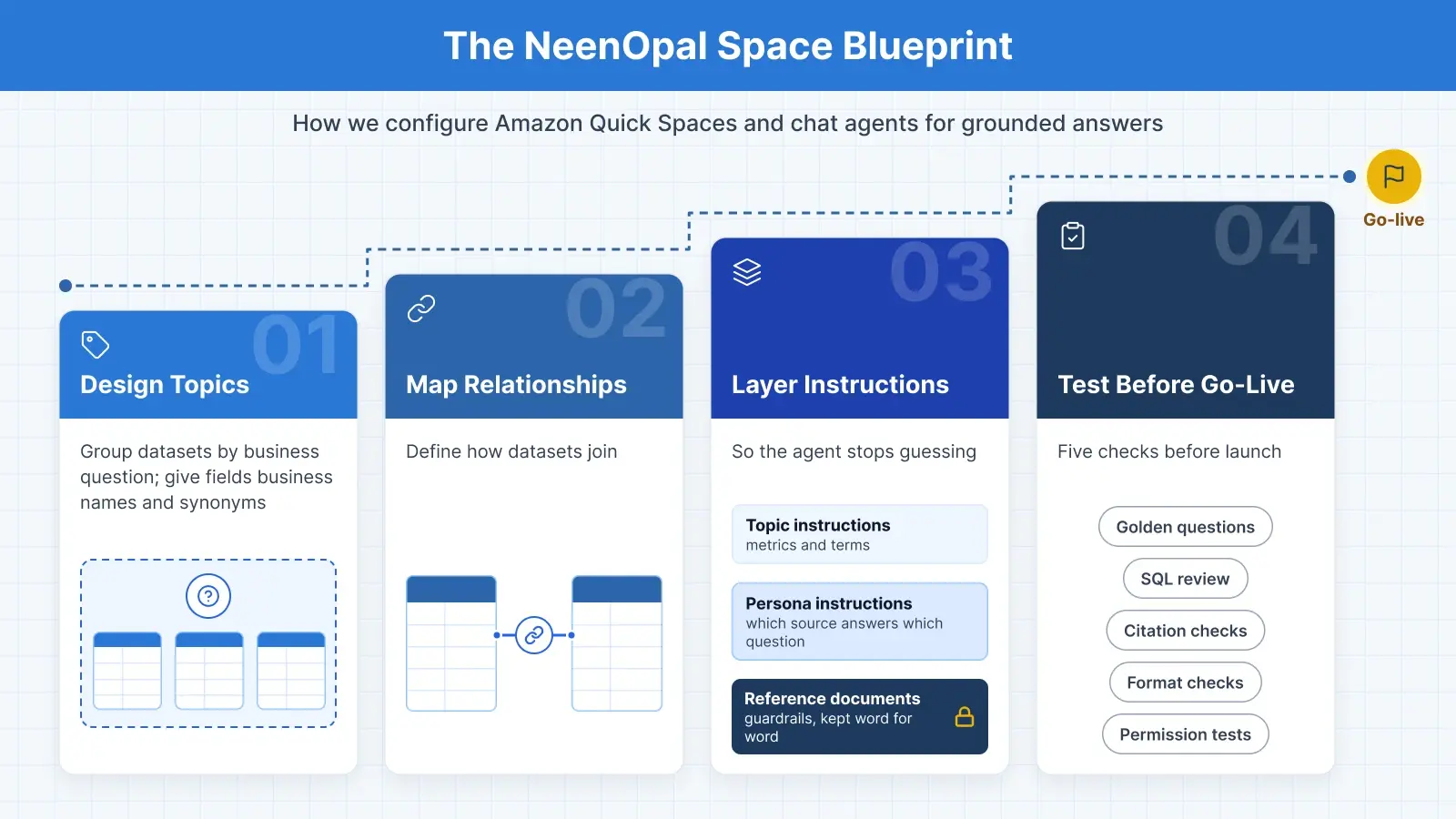
This is the four-step method NeenOpal uses to design and test native Amazon Quick features so an agent answers from governed data. Nothing custom, nothing bolted on, just built-in Quick capabilities used deliberately. The samples are simplified.
Step 1: We design Topics for an AI agent
We scope each Amazon Quick Topic to one business question and one group of users. Sales managers asking why pipeline slipped this quarter get their own Topic, rather than a Topic that mirrors the whole warehouse. In Quick, the Topic is the semantic layer, so it's also where several datasets get connected and their relationships defined.
- Business-friendly field names: We use business-friendly field names to rename the technical columns. Since the agent matches a user’s question to fields by name, plain names lead to the right columns.
- Add synonyms and descriptions: If your team says “deal”, “opp” and “opportunity” interchangeably, add all three as synonyms for the same field, so the agent knows what each value means.
- Hide fields the agent doesn’t need: Exclude system columns such as load timestamps, surrogate keys, and retired fields. Fewer look-alike columns means fewer chances for the agent to pick the wrong one.
Step 2: We map relationships between datasets
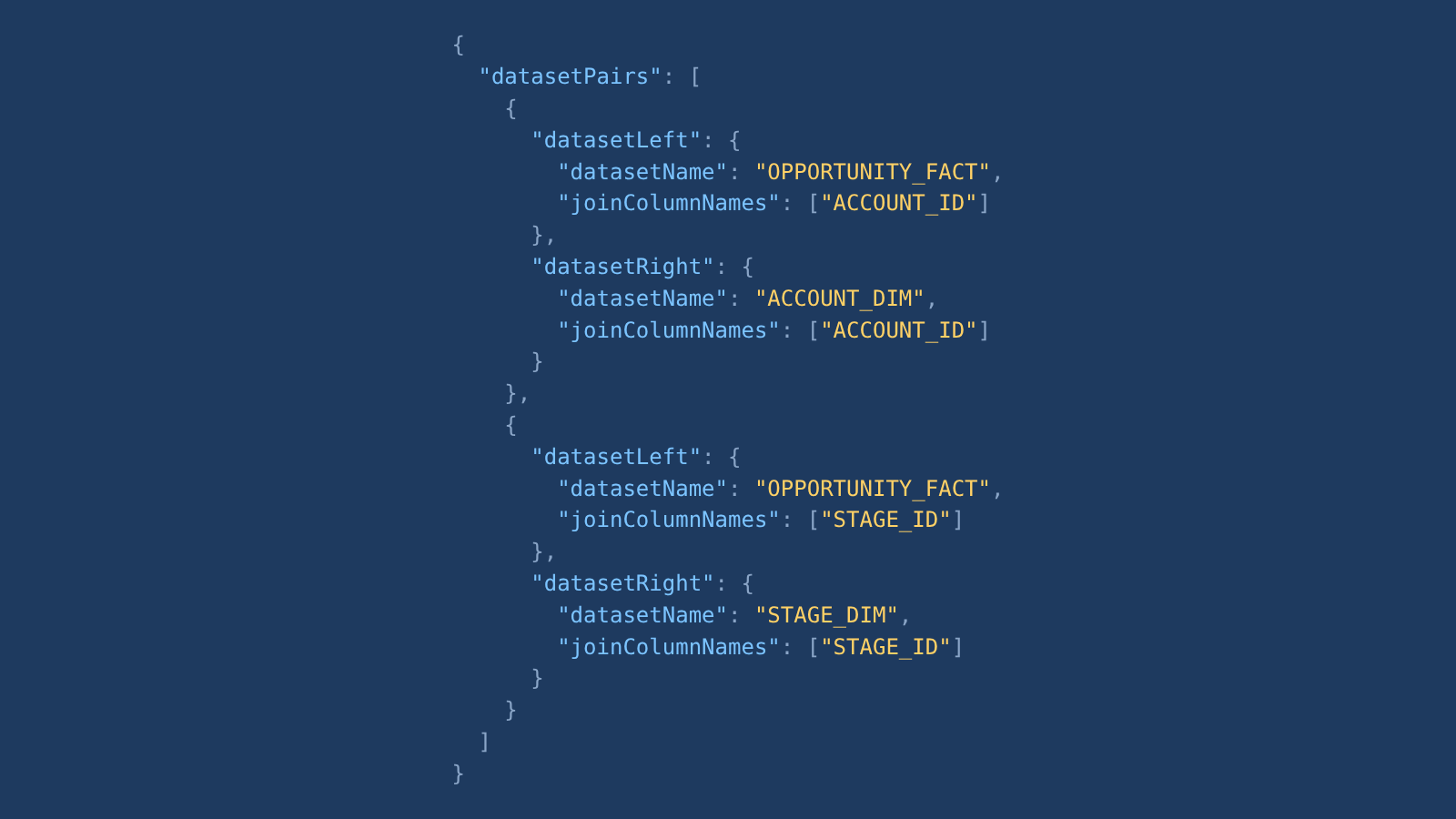
Opportunities, accounts, and stages stay as three datasets. We avoid mashing them into one wide table. Instead, we define their relationships within the Topic using matching key columns. This makes the agent return correct numbers, as each value is stored only once, which helps the agent avoid counting the same account multiple times and giving inflated answers.
Here's what a sanitized upload looks like in AWS's JSON format:
Step 3: We layer instructions so the agent stops guessing
If win rate is defined in the dataset, it isn't defined again in the persona. That's the whole discipline. Each rule has one home, so nobody can edit one copy and leave a stale one behind.
Instruction layer |
Handles |
Sample rule |
|---|---|---|
|
Dataset Custom Instructions |
Metric definitions, aggregation rules |
"Win rate = Closed Won count / (Closed Won + Closed Lost count). Exclude open deals." |
|
Topic Custom Instructions |
Field ambiguity, date logic, cross-dataset logic |
"'This quarter' means the current fiscal quarter, starting 1 February." |
|
Persona instructions |
Agent role, source routing |
"Use the Sales Pipeline Topic for numbers and the Contracts knowledge base for terms." |
|
Reference documents |
Mandatory guardrails, templates |
"Never forecast revenue. If asked, reply that forecasts are owned by Finance." |
Step 4: We test before go-live
We put every agent through five checks, and the order matters. A failed check sends the agent back for fixes, then testing resumes from the beginning.
-
Golden questions: These come straight from the sales team’s pipeline reviews. The metric owner records an accepted answer for each one before the agent ever sees it.
-
Reconciliation: We line up three numbers for every question: the agent’s, the dashboard’s, and one from a query an analyst wrote independently. We trace any gap to its cause.
-
Logic inspection: We read the SQL behind each answer, join by join and filter by filter. Getting the right total from the wrong join is luck, and luck runs out when next quarter’s data lands.
-
Edge cases: A vague question, an off-topic request, a question about a region the company has never sold in are tested here.
-
Permission tests: Last, we log in as a restricted user from every group (a regional rep, say) and replay the full set. If row-level security leaks, we’d rather find it than a customer.
Worked example: one question, a database number and a contract clause
This is conversational analytics for structured and unstructured data in practice. A well-configured sales agent can answer a single question by combining a figure from the funnel dataset with a clause from a contract stored in a knowledge base. The account and figures below are illustrative.
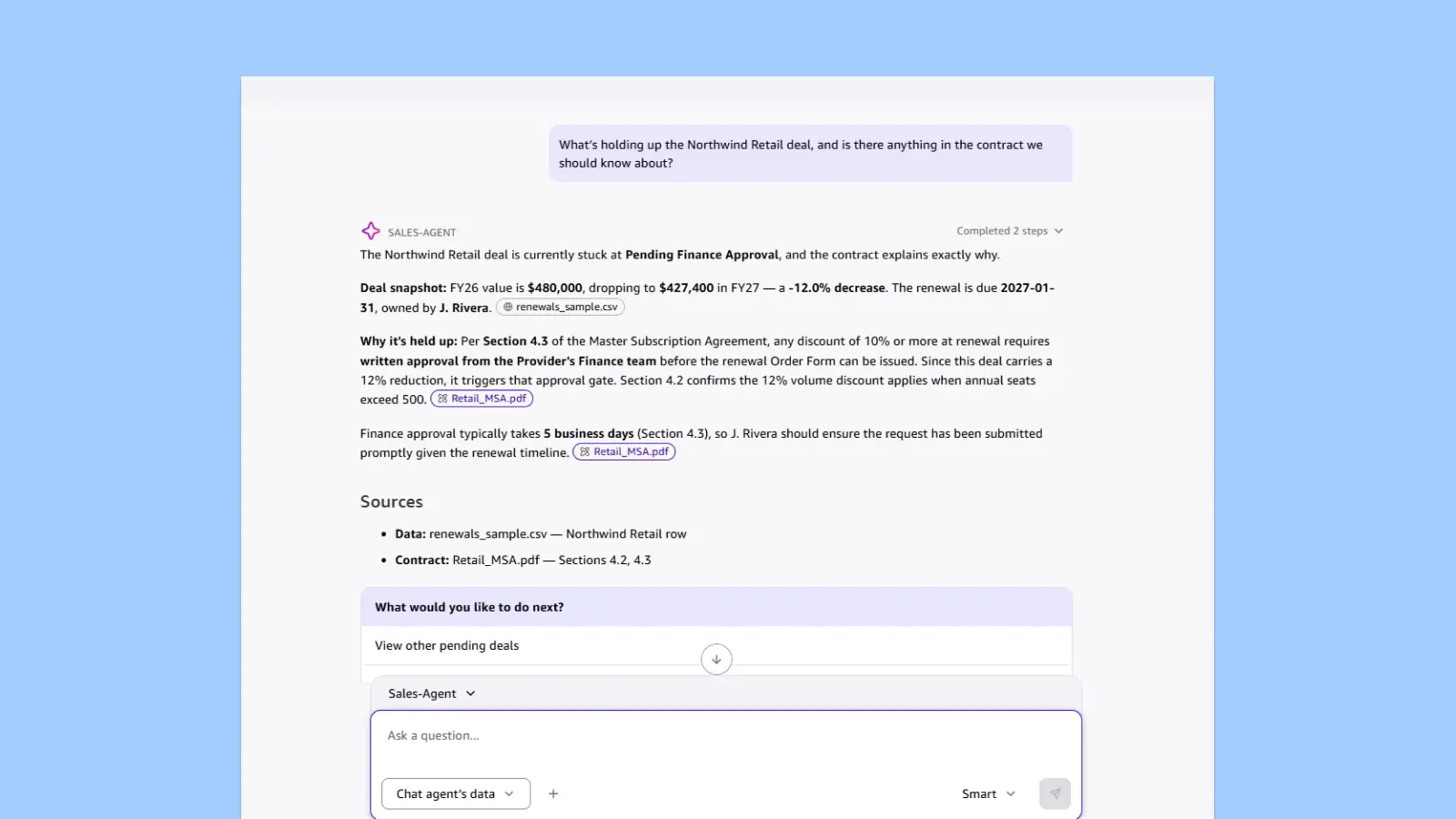
Same pattern, other industries:
- Insurance: Bind ratio and days-to-quote for a submission from the database, next to the relevant exclusion clause from the policy form.
- Title: Open days and status on an order from the order system, next to the easement note in the commitment document.
What setup mistakes cause bad agent answers?
Every one of these ties back to a Quick behaviour covered earlier, and every one shows up as a wrong or unhelpful answer sooner or later:
-
One Topic for the whole warehouse: Forty columns with "revenue" somewhere in the name, and the agent has to pick one.
-
Joins left to inference: No declared relationships, or keys that don't match on type or contain nulls.
-
Raw column names: Columns keep their technical database names, such as amt_2 or dt3, instead of business terms like “Deal Amount” or “Close Date.” The agent can’t tell what these fields mean.
-
Metric logic in persona instructions: Quick rewrites the persona, and your definition gets paraphrased with it.
-
An unlinked agent: It searches everything the user can open instead of one Space.
-
Stale documents in the knowledge base: Last year's contract version gets cited like it's current.
-
Admin-only testing: Permission gaps don't show until a restricted user hits them in production.
-
No golden question set: Without a fixed list of test questions and their verified answers, there’s no way to measure accuracy. When someone edits a Topic or an instruction, you can’t tell whether the agent got better or worse.
DIY vs Partner: what it really takes
A single-team pilot is well within reach of most in-house BI teams. With a few clean SPICE datasets and a small document set, the setup is mostly configuration.
A company-wide rollout is a different project. Mismatched customer IDs across the CRM and ERP need mapping tables, regulated documents need separate access controls, and every user group needs its own permissions tested. That’s where data engineering and governance work begins, and where an experienced Amazon Quick consulting partner saves the most time.
|
Work item |
In-house pilot |
With a partner |
|---|---|---|
|
Scope |
One team, one or two datasets, a few documents |
Several teams, multi-dataset Topics, multiple knowledge bases |
|
Semantic layer |
Column renames and basic descriptions |
Business-question Topic design, enrichment, synonyms, field exclusions |
|
Join keys |
Works when IDs already match |
Upstream mapping tables and pipelines when IDs differ across systems |
|
Instructions |
Persona instructions only |
Layered dataset, Topic, persona and reference-document rules |
|
Testing |
Spot checks by the builder |
Golden questions, SQL reconciliation, edge-case and restricted-user tests |
|
Permissions |
Admin view |
Group-by-group resource sharing, RLS and CLS checks |
Why NeenOpal for Amazon Quick Consulting
Grounded answers depend on the setup choices covered in this guide. Here’s why teams bring NeenOpal in to make them.
-
AWS-validated expertise. NeenOpal is an AWS Advanced Tier Services Partner and holds the AWS AI Competency in Generative AI and Agentic AI. This means a team whose agentic AI delivery AWS has already reviewed handles your Amazon Quick rollout, lowering the risk of a failed pilot.
-
Enterprise-grade working solutions. InsightIQ is one of the Amazon Quick solutions we’ve built and run. Executive teams use it to ask board-level questions in plain English, keep an eye on KPIs, and pull executive summaries straight from their data, with the same guardrails we put on all our Amazon Quick Suite agents.
-
Answers you can audit. Ask one of our agents for Q3 win rate and you can open the SQL it ran to get there. We model the data before the agent touches it and document every business rule, which is why the answer can be traced.
-
Fast, low-lift delivery. Most deployments are live in 2 to 3 weeks. Your team’s heavy lifting happens at the start, when you share the data and documents, and we take it from there.
Book a consultation, and we'll go through your Space design and data sources with you.
FAQs
1. Amazon Quick vs QuickSight: what’s the difference?
QuickSight was AWS's BI tool; Amazon Quick is the bigger AI workspace it grew into, with chat agents, research, and automation alongside BI. That’s the core of Amazon Quick vs QuickSight: QuickSight’s dashboards continue as QuickSight, one feature inside Amazon Quick.
2. How do you set up Amazon Quick Spaces?
Make the Space, click Add knowledge, and add the team's dashboards, Topics, knowledge bases, files, and actions. Share with groups (Owner or Viewer), and you're done. You'll need Author Pro or Reader Pro, and your admin has to allow Space creation.
3. Can Amazon Quick chat agents answer from databases and documents together?
Yes, if the Space you link has both a Topic and a knowledge base in it.
4. How do Amazon Quick Topics reduce AI agent hallucinations?
They take the guessing out of joins and terms. The Topic says which keys connect which datasets, its Custom Instructions say what "this quarter" or "active customer" means, and the agent builds its SQL on that.
5. Does sharing a Space or an agent give users access to the data?
No. Put the claims dashboard in a Space, share the Space with the whole underwriting group, and the people who couldn't see that dashboard before still can't. The one exception is files uploaded directly to a Space, as AWS makes those available to everyone with access to the Space. So don’t upload sensitive PDFs straight into a shared Space. Connect them through a knowledge base with the right access controls instead.