


Data generation is a never-ending process. This means reporting must keep pace with the data to avoid delays. Your insights are there, but manual, inconsistent delivery is still causing issues.
Consider the possibility of automating all these tasks, and suddenly, your analytics function devotes more time to distributing insights than generating them.
According to the McKinsey Global Institute, employees spend 30% of their time on mundane tasks that can be automated. Tools like Power BI are designed to streamline workflows as effectively as possible.
Power BI automation is the architectural answer to this problem, and in 2026, it spans far more ground than a basic scheduled refresh.
This guide breaks down Power BI automation across every layer, from what you can do out of the box to where enterprises hit real-world constraints. You’ll understand not just how to automate but where automation breaks and what it takes to solve it at scale.
What Is Power BI Automation? (Beyond Basic Scheduling)
Native Automation vs. Extended Automation
Power BI automation is a term that gets used loosely across the industry, and that imprecision costs enterprise teams months of architectural rethinking after the fact. Let us define it properly.
At its core, Power BI automation refers to reducing or removing manual intervention in how reports are built, refreshed, filtered, or distributed. In practice, though, what actually gets automated—and how reliably—depends heavily on the tooling and setup behind it. Teams often assume “automation” is a single capability, but it tends to behave very differently across environments.
Native Power BI automation covers the capabilities Microsoft ships inside the Power BI Service without additional tooling:
- Power BI report scheduling: scheduled dataset refresh (up to 8 times per day on Pro, 48 times per day on Premium), email subscriptions for static report snapshots, and data alerts for single KPI thresholds.
- Basic email delivery of report snapshots to a fixed recipient list—useful, but often too rigid once distribution needs start changing.
- Data-driven alerts that trigger when a measure crosses a defined threshold, though in practice these can be noisy or misaligned if the underlying metrics aren’t stable.
Extended Power BI automation: The layer where enterprise-grade work actually happens, requires stepping outside native Power BI into adjacent tooling:
-
Power BI Power Automate integration for conditional workflow logic, approval chains, and cross-system triggers.
-
The Power BI REST API for programmatic dataset refresh, report export, and workspace management.
-
Custom orchestration layers, Azure Data Factory, Azure Functions, Python — for production-grade data pipelines that Power BI cannot manage alone.
Who Benefits from Power BI Automation
Power BI automation delivers measurable value across three distinct personas — but the return on investment looks different for each.
- BI Managers benefit most visibly: fewer manual export cycles, fewer human errors in filtered report distribution, and faster delivery windows. Power BI automation directly recovers analyst hours that currently disappear into logistics rather than analysis. When those hours return to insight work, the analytics function becomes demonstrably more valuable to the business.
- IT Ops teams benefit through reliability and governance. Automated refresh pipelines with proper failure alerting eliminate the 2 AM incident where a stakeholder emails to report that the dashboard is showing last month's data. Power BI workflow automation also reduces shadow IT, the one-off scripts and manual workarounds that grow invisibly outside any governance framework.
- Analytics engineering teams benefit at the architecture level. When a new business unit onboards or a new metric set is approved, automation means the reporting layer scales without proportional headcount addition.
In NeenOpal's delivery experience, the most consistently reported outcome after implementing Power BI automation is a recovery of 15–25 analyst hours per week on report distribution alone, time that moves directly into higher-value analytical work.
Whether that recovered capacity is worth a custom build depends entirely on your distribution scale, refresh requirements, and governance constraints which is exactly what our BI engineering team maps out before recommending anything. Tell us what your current Power BI setup looks like, and we'll tell you honestly whether native tooling covers it or where custom architecture earns its cost.
Four Types of Power BI Automation
Here are four types of Power BI automation that can streamline data flows in a better way:
Report Distribution Automation
Report distribution automation is the process of automatically delivering Power BI reports or filtered snapshots of those reports to defined recipients on a schedule or event trigger, without a human clicking Export and composing an email.
What it covers: scheduled email subscriptions, PDF and PowerPoint exports, filtered report delivery by audience segment, and conditional distribution logic such as "only send if the underlying metric has changed from the prior period."
When to use it: any recurring reporting cadence qualifies, such as weekly sales summaries, daily operational dashboards, monthly financial packs, or regulatory submission reports. These are usually the first Power BI automation use cases teams implement because the ROI is visible quickly, though teams like NeenOpal often see gaps emerge later.
Native limitations are real and specific. Power BI's built-in subscriptions deliver the same static snapshot to every subscriber on the list. There is no native mechanism to send each of 200 sales representatives a filtered view scoped to their territory. There is no conditional logic no "send only if revenue has dropped more than 10%," and no dynamic personalization per recipient. Paginated report delivery requires Premium licensing. These are architectural constraints, not bugs Microsoft will patch.
At NeenOpal, we rebuilt this distribution layer entirely for a healthcare client, distributing 400 filtered operational reports nightly, each scoped to a different clinical facility and delivered to a different operations lead. Native Power BI automation could not support the filtering scale or the conditional delivery logic. The custom architecture now runs zero-touch every night.
Data Refresh Automation
Power BI data refresh automation is the engine underneath every report. If your datasets do not refresh reliably and on time, your automation layer is delivering stale insight — which is operationally worse than no automation at all.
What it covers:
- Scheduled refresh: configure a fixed cadence, hourly, every 30 minutes on Premium, or daily, and Power BI will refresh the dataset automatically.
- On-demand refresh via the REST API: trigger a dataset refresh programmatically when upstream data actually lands in your data warehouse, rather than polling on a fixed clock schedule that may fire before data is ready.
- Incremental refresh: Configure Power BI to load only new or changed rows rather than the full dataset table, essential for large fact tables where full refreshes would exceed timeout limits.
Where enterprises consistently hit walls:
Power BI Pro limits each dataset to 8 scheduled refreshes per day. For near-real-time operational reporting, think logistics dashboards or intraday financial positions — this is immediately insufficient. Gateway configuration, required for on-premises data sources, adds another failure surface that is notoriously difficult to troubleshoot at scale. And native Power BI has almost no meaningful alerting when a refresh fails silently: a dataset can sit hours stale before any stakeholder notices.
Reliable Power BI data refresh automation requires pairing Power BI's refresh mechanisms with a proper orchestration layer.
Workflow Automation
This is where Power BI workflow automation expands beyond reporting into business process integration. Via Power Automate, Power BI can function as a trigger point inside multi-system workflows, rather than operating as a passive display layer that humans must monitor.
What it covers: conditional logic flows, approval chains, cross-system notifications, ticket creation, and action triggers based on data threshold events.
Real enterprise use case: a retail finance team needed to act on revenue anomalies in near-real time. The automated workflow: when a Power BI data alert fires, revenue metric drops below the defined threshold, Power Automate triggers simultaneously. It posts a formatted alert to the finance team's Microsoft Teams channel, creates a Jira ticket with the current metric value pre-populated and the relevant regional controller assigned, and sends a direct email to the regional lead with a link to the filtered dashboard view. All of this happens without a human monitoring a dashboard.
This is Power BI Power Automate integration working in production. Power BI acts as the sensor, Power Automate handles the conditional logic, and downstream systems take the action.
Limitations worth naming directly: the Power Automate connector for Power BI offers only two native triggers, "When a data alert is triggered" and "When a new report subscription is processed." For complex conditional branching or high-volume trigger scenarios, Power Automate run limits and licensing tiers become blockers quickly. Power BI workflow automation through the native connector works well up to a point; past that point, REST API integration is required.
Screenshot and Visual Export Automation
This is the Power BI automation scenario that most tutorials skip — and the one that surprises enterprise teams hardest when they encounter it as a production requirement.
Screenshot and visual export automation means automatically capturing specific Power BI visuals, a single chart, a KPI card, or a ranked table, and embedding them directly in emails, Slack messages, Teams posts, or compliance documentation, without requiring the recipient to authenticate into Power BI at all.
Why this matters in practice: Executive stakeholders who do not use Power BI on a daily basis do not want a hyperlink that requires them to navigate a report after logging in. They want a chart in their inbox at 7 AM. Compliance teams generating audit reports need pixel-perfect visual snapshots as evidence artifacts embedded in structured documentation. Neither scenario is served by native Power BI subscriptions, which deliver full-page report screenshots rather than individual visual exports.
The Power BI REST API's export-to-file capability covers a portion of this, but precise visual-level export at production scale requires custom tooling. This is a genuine enterprise need and it sits clearly beyond what native Power BI automation delivers.
Tools Used for Power BI Automation
Power BI automation makes use of several tools to automate the scheduling, alerts, model scripting, and performance optimization. Here are three primary tools to look at:
Power BI + Power Automate
Power BI Power Automate integration is the first Power BI automation tool most teams reach for, and for legitimate reasons. The Power BI connector inside Power Automate provides a structured, low-code environment for extending Power BI into workflow territory without writing custom API code.
What the connector actions actually do, and this specificity matters because documentation is vague:
- Refresh a dataset: triggers an on-demand refresh of a specified dataset. Useful for post-pipeline refresh triggers when data has finished loading upstream.
- Export to file for reports: calls the export API to generate a PDF, PowerPoint, or PNG of a specified report. Subject to premium licensing for certain file types and paginated reports.
- Get reports in workspace: retrieves a list of reports, which is useful for building dynamic distribution flows where the report list is not hardcoded.
- Add rows to a dataset: push data to a push dataset, a different pattern entirely, used for real-time streaming scenarios.
What Power Automate handles genuinely well: notification flows, simple cross-system triggers based on data alerts, and lightweight export-and-send pipelines for fixed recipient lists under approximately 20 recipients. It is a valid Power BI automation tool for this scope.
Where it breaks down: conditional per-recipient filtering (not supported by the connector), high-volume distribution flows (run limits and throttling apply), and any scenario requiring dynamic parameter passing based on recipient identity. Power BI workflow automation via native Power Automate connectors hits its effective ceiling faster than most teams anticipate — particularly at enterprise scale. For those scenarios, direct REST API integration is the right path.
Power BI REST API
The Power BI REST API is the programmatic control surface for everything Power BI can do — and the correct Power BI automation tool when the Power Automate connector's constraints become blockers.
What it enables: trigger dataset refreshes on demand, export reports to PDF, PowerPoint, or PNG, manage workspaces programmatically, create and update datasets, retrieve refresh history, control access permissions, and embed report content in external applications.
When to use it directly: when your Power BI automation must respond to external events, such as a file landing in Azure Blob Storage, an ADF pipeline completing successfully, or a database row being inserted, rather than to a fixed clock schedule. Also, when you need to export output fed into a downstream processing step or when you are managing Power BI resources at a scale that requires programmatic governance across dozens of workspaces.
Who this is for: data engineers and developers comfortable with REST, OAuth token management, and building retry logic for transient failures. The API is powerful, but it requires engineering discipline to operate reliably in production. Rate limits apply per endpoint and vary by licensing tier. The Power BI REST API is not a tool for BI managers; it is an infrastructure layer for the engineering team supporting the Power BI automation architecture.
Custom Orchestration Layer
When Microsoft's native stack, Power BI automation tools, including Power Automate, plus the REST API, is still not enough, enterprises need a proper orchestration layer sitting above Power BI rather than inside it.
What this looks like in practice:
- Azure Data Factory (ADF): used to coordinate upstream pipeline completion with Power BI dataset refresh triggers. Instead of relying on fixed schedules, ADF can trigger a refresh only after the data warehouse load is actually complete, typically via the REST API—this avoids the common issue of refreshes running on incomplete data.
- Azure Functions: serverless event handlers for event-driven Power BI automation. A Blob Storage arrival event triggers a function, which calls the refresh API and logs the outcome to Azure Monitor, giving you the failure alerting that Power BI natively lacks.
- Python scripts with orchestration frameworks: For enterprises without full Azure infrastructure investment, Python with the “requests” library, combined with Airflow, Prefect, or even simple cron scheduling, can orchestrate Power BI API calls reliably and with proper logging.
This custom orchestration architecture removes the fragile fixed-clock dependency that makes native Power BI automation brittle. You refresh when data is actually ready, not when a schedule fires and hopes data arrived on time.
The Limitations of Native Power BI Automation
The basic Power BI architecture has limitations that often necessitate third-party enterprise tools. Here are some limitations:
Licensing Walls That Block Automation at Scale
Licensing is the invisible ceiling in virtually every Power BI automation project — and it almost always surfaces after the architecture has been designed and development has begun. Here is the breakdown of costs:
Power BI Pro ($10/user/month):
- Scheduled dataset refresh: capped at 8 times per day per dataset.
- Email subscriptions: available, but recipients must hold Pro licenses. Free users cannot receive subscriptions.
- REST API access: available, with per-dataset and per-user rate limits.
- Paginated report export via API: not available. This is a hard stop — not a configuration issue.
Power BI Premium Per User (PPU, ~$20/user/month):
- Scheduled refresh: up to 48 times per day — enabling near-hourly data freshness.
- Paginated reports: included, with API export capability.
- Broader export file type support via the REST API.
- XMLA read/write endpoint: enables advanced dataset management and deployment Power BI automation.
Power BI Premium Per Capacity (P-SKUs, from $4,995/month):
- API refresh rate limits have significantly increased.
- Distribution to free-license users within the tenant.
- Internal distribution without per-user license costs.
- The only tier that enables true enterprise-scale Power BI automation without per-user licensing arithmetic becoming a budget blocker.
Dynamic Personalized Distribution: Why It Is Harder Than It Looks
This is the most common gap in enterprise Power BI automation planning and it deserves direct, unvarnished treatment.
The scenario: 200 regional sales managers each need the national sales report filtered to their specific region, territory, and product category. Each needs it delivered to their inbox by 7 AM every weekday. The report should only be sent on days when their region has recorded transactions in the prior day.
Native Power BI subscriptions cannot support this. Full stop. Every subscription recipient gets the same snapshot. There is no per-recipient filter, no conditional send based on data state, and no dynamic content variation. This is not a roadmap gap; it is an intentional product scope limitation. Power BI automation for personalized distribution requires a custom architecture.
What the actual architecture requires:
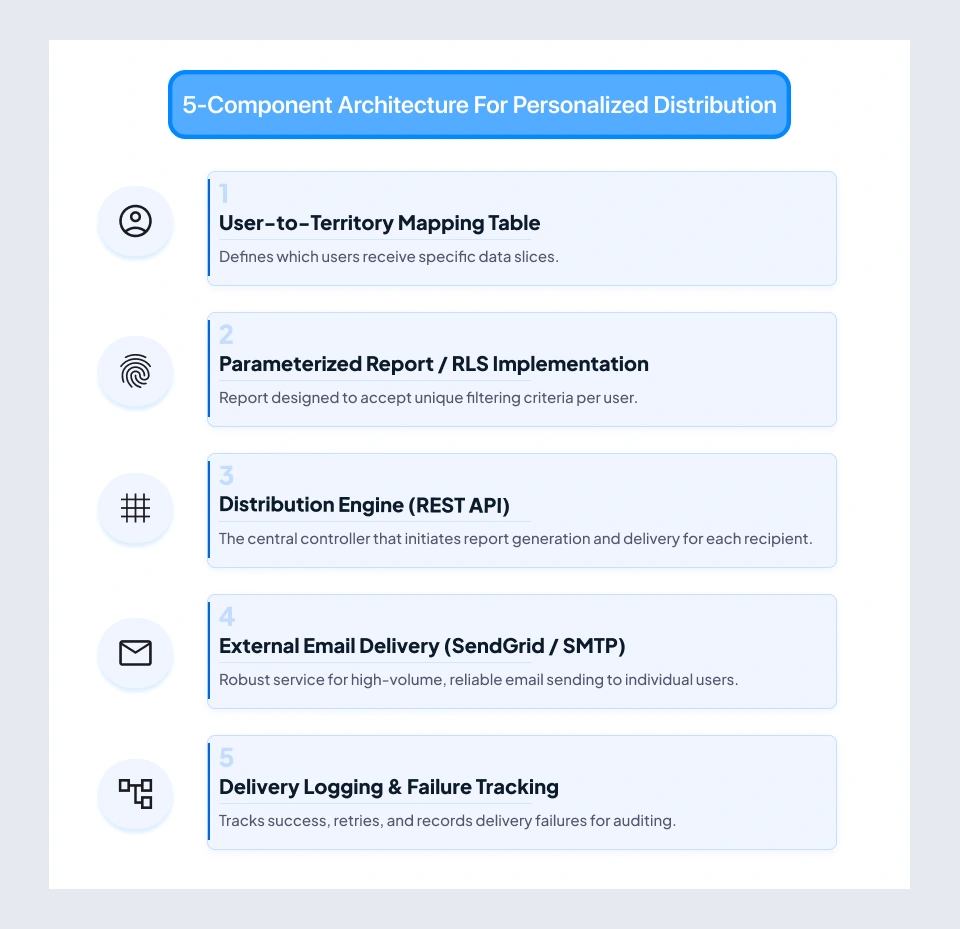
- A user-to-territory mapping table, maintained and queryable by the distribution engine.
- A parameterized Power BI report — or a row-level security (RLS) implementation scoped to recipient identity — that produces correctly filtered output per recipient.
- A distribution engine that iterates over the recipient list, generates a filtered report export per recipient via the REST API, and delivers each independently.
- External email delivery infrastructure, SendGrid, Azure Communication Services, or an SMTP relay, because Power BI's subscription system cannot handle per-recipient dynamic payloads.
- Delivery logging and failure tracking, because at 200 nightly deliveries, some will fail, and you need to know which ones and why.
At NeenOpal, we have architected this pattern for clients in healthcare, financial services, and retail. The recurring finding is consistent: what initially appears to be a "couldn't Power Automate handle this?" configuration problem is actually a multi-system engineering problem. Native Power BI automation is simply not designed for personalized distribution at scale.
Monitoring, Alerting, and Failure Recovery Gaps
Production-grade Power BI automation requires knowing immediately when something fails, not when a stakeholder emails at 9 AM to report that the dashboard is showing last week's numbers.
Native Power BI's monitoring capabilities are thin by any production standard. The refresh history UI shows success and failure status, but there is no built-in mechanism to push a failure notification to Teams, PagerDuty, or email when a scheduled refresh fails silently. You must poll for the failure state, as it does not push updates to you.
What enterprises build instead:
- Azure Monitor + Log Analytics: Ingest the Power BI Activity Log and configure alert rules that trigger on refresh failure events. This gives you a proper alerting pipeline outside Power BI.
- Power Automate polling flow: check dataset refresh status via API on a defined schedule; trigger a Teams notification if status returns "Failed" or if the last successful refresh is older than a defined threshold.
- Custom monitoring scripts: Python or PowerShell polling the refresh history API endpoint and pushing structured alerts to Slack, PagerDuty, or an internal ticketing system.
None of this monitoring infrastructure is built into Power BI. All of it is additive engineering work, which is precisely why production-grade Power BI automation is an infrastructure project, not a product configuration exercise.
Paginated Reports Require Premium
Paginated reports are high-quality, multi-page PDF documents needed for things like financial statements, regulatory filings, board packs, and compliance documents, and they are only available with Power BI. There is no workaround.
If your Power BI automation roadmap includes exporting paginated reports as PDFs on a scheduled or triggered basis, Premium licensing is a prerequisite. The export API endpoint for paginated report file generation is premium-gated: it will not function on Pro or free licenses, regardless of how the automation flow is constructed.
The consistent pattern in NeenOpal's engagement experience: teams build the paginated report on a Pro license, design the Power BI automation flow around it, and then discover at testing that the export call returns a licensing error. Budget for Premium before you design the paginated report layer, not after development is complete.
Advanced Power BI Automation: Where Most Enterprises Get Stuck
Production-Grade Report Distribution Architecture
Understanding the idea of Power BI automation is relatively straightforward. Getting a system to generate 400 filtered reports, deliver each one reliably to the right recipient, handle partial failures without breaking the entire run, and then reset cleanly for the next cycle. That’s a very different discipline altogether where most implementations start to show strain.
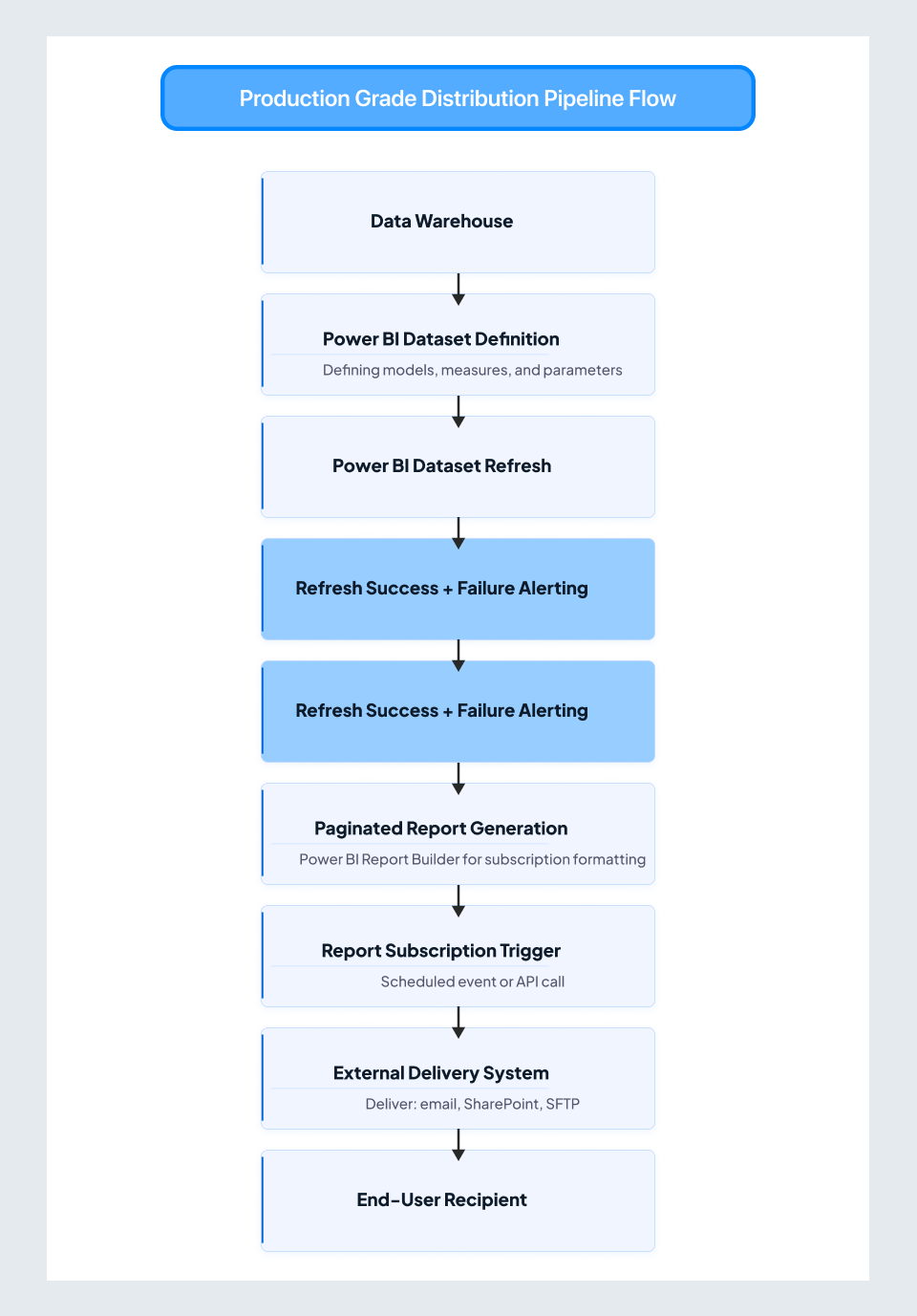
Here is what production-grade automated distribution actually looks like, mapped as decision points rather than code:
[Data Source]
→ [Data Warehouse / Data Lake Layer]
→ [ADF Pipeline Completion Event — Event-Driven Trigger]
→ [Power BI Dataset Refresh via REST API]
→ [Refresh Success Confirmation + Failure Alerting]
→ [Distribution Engine Triggered]
→ [Recipient List Query from Mapping Table]
→ [Per-Recipient Export via REST API (filtered or RLS-scoped)]
→ [External Delivery System — SendGrid / SMTP Relay]
→ [Delivery Log Write + Failure Queue]
→ [Retry Handler for Failed Deliveries]
- Decision point 1 — Refresh the trigger strategy. Does the distribution system start on a fixed clock schedule, or does it wait for an event signal that upstream data is ready? Scheduled clocks are simpler to configure but brittle if upstream pipelines run late. Event-driven triggers via ADF completion callbacks or Azure Functions are more resilient but require additional infrastructure investment.
- Decision point 2 — Filtering approach. Row-level security (RLS) is baked into the semantic model versus parameterized report exports via the API. RLS is cleaner for ongoing maintenance and aligns with Power BI's security model; parameterized exports offer more flexibility at the cost of more custom code and more API calls per recipient.
- Decision point 3 — Delivery infrastructure selection. Power BI subscriptions versus external email delivery. For dynamic per-recipient delivery at volume, an external delivery infrastructure is required. Vendor selection — SendGrid, Amazon SES, Azure Communication Services, or internal SMTP relay—affects deliverability rates, bounce handling, and compliance logging requirements.
- Decision point 4 — Failure handling architecture. When one of 400 nightly exports fails, does the batch halt? Does it retry immediately? Does it queue the failure for morning retry? Does the operations team receive an alert that includes the specific recipient and the failure reason? These failure mode decisions must be made at design time, not during a 3 AM incident response.
This is what enterprise-scale Power BI automation actually looks like in production. It is not a Power Automate flow with four steps. It is a distributed system with multiple independent failure surfaces, and it needs to be designed, tested, and monitored as one.
Multi-Workspace Automation and Governance
Enterprise Power BI environments are not single workspaces. They are ecosystems of dozens of workspaces organized by business unit, data domain, and environment tier (development, test, production). Scaling Power BI automation across this landscape introduces governance challenges that are entirely separate from the technical automation layer.
What multi-workspace Power BI automation governance requires in practice the following:
- Service principal governance: Automation should run under Microsoft Entra ID service principals with scoped workspace permissions and not under individual user accounts that leave when employees depart. Managing service principals across dozens of workspaces requires a structured inventory, permission audit schedule, and secret rotation policy.
- Audit trail infrastructure: The Power BI Activity Log captures every automated action, including dataset refreshes triggered by API calls, report exports, and workspace membership changes. This log needs to be ingested into Azure Monitor or a SIEM platform and made queryable for compliance and forensic investigation.
- Deployment pipeline governance: When automated CI/CD pipelines push report updates from development to production workspaces, rollback capability is essential. Version-controlled PBIX files and XMLA-based deployment automation provide this but require upfront architectural design.
- Security boundary enforcement: automation flows that move content or trigger actions across workspace boundaries must be validated to ensure they do not inadvertently expose data across security domains or elevate permissions.
Multi-workspace Power BI automation is where the governance layer earns its architectural cost.
DIY vs. Expert: Where Is the Line?
The DIY Ceiling
Let us be direct, because honesty here builds more trust than overselling: not every Power BI automation challenge requires professional engagement. If your use case is genuinely simple, native tooling handles it well. Spending on custom architecture would be wasteful.
When native Power BI automation is the right choice:
- Ten or fewer static reports going to a fixed set of internal recipients.
- All recipients hold Power BI Pro licenses.
- No per-recipient data filtering is required.
- A refresh cadence of four times per day or fewer is sufficient.
- No paginated report export is needed.
- No cross-system workflow integration beyond a simple Teams notification.
If this scenario describes your situation accurately, Power BI's built-in Power BI report scheduling, subscriptions, and basic Power Automate flows are appropriate. Use them. Native features are sufficient to automate Power BI reports at this scale, and the configuration effort takes hours, not months.
Where the DIY ceiling appears:
The complexity threshold at which expert engagement delivers faster return than continued DIY involves any meaningful combination of the following: 50 or more recipients needing customized views; requirements for exporting reports in pages; reliability standards for data refreshes where "data must be current by 6 AM" is a must, not just a wish; automating workflows across different systems that go beyond basic notifications; needing to meet compliance audit standards; or managing multiple workspaces with governance rules.
At this threshold, the engineering hours spent fighting native limitations and the ongoing maintenance burden of fragile workarounds typically exceed the cost of a properly scoped professional engagement within six to twelve months. Power BI automation DIY scales to a clear point.
Crossed the DIY ceiling?
If you're managing 50+ filtered recipients, hard refresh SLAs, paginated compliance exports, or multi-workspace governance, native Power BI won't get you there reliably — and the workaround maintenance cost compounds fast. NeenOpal architects production-grade Power BI automation that runs zero-touch. Talk to our BI engineering team →
What NeenOpal Delivers
NeenOpal's Power BI automation practice covers the full stack of what enterprises need in production, including the components that native tooling cannot assemble on its own.
- Custom report distribution systems: dynamic, per-recipient filtered delivery at scale. The architecture described in Section 5.1 was built, tested, and maintained in production. The system was not just a proof of concept, but it was a functional system that included features such as failure handling, delivery logging, and operational runbooks.
- Paginated report automation: Premium-tier export pipelines for financial, regulatory, and compliance reporting workflows where pixel-perfect PDF output is a stringent requirement.
- Power Automate enterprise flows: These are advanced flows that go beyond the basic features of the standard connector, enabling the creation of custom connectors and integration with various systems like CRM, ERP, and ticketing platforms.
- Screenshot and visual export automation: It is designed for executive stakeholders who need specific visuals in their inbox and for compliance teams generating evidence artifacts for audit documentation.
- Multi-workspace governance: service principal lifecycle management, Activity Log ingestion and alerting, deployment pipeline governance, and security boundary validation across enterprise workspace estates.
Frequently Asked Questions:
1. How do I automate reports in Power BI?
Use native subscriptions for simple, fixed-recipient delivery. For conditional logic and cross-system triggers, use the Power Automate connector. For per-recipient filtering, large-scale distribution, or paginated PDF export, the REST API with custom orchestration is required.
2. Can Power BI be automated?
Yes. Power BI supports scheduled refresh, email subscriptions, data alerts, and Power Automate integration natively. However, features like filtering for each recipient, exporting paginated reports, and large-scale distribution need custom development using the REST API.
3. Does Power BI Premium include automation features?
Yes. Premium allows you to export paginated reports using an API, refresh datasets up to 48 times a day (compared to 8 on Pro), use the XMLA endpoint for automated deployment, and share with users who don’t have it, which is a prerequisite for any serious automation project.
4. What is the difference between Power BI subscriptions and automated distribution?
Subscriptions send the same static snapshot to all recipients on a fixed schedule — no filtering, no conditions. Automated distribution uses the REST API to deliver individually filtered reports per recipient, with conditional logic and delivery logging. They solve fundamentally different problems.
5. How do I automatically send Power BI reports by email?
For a fixed recipient list, use Power BI's built-in Subscribe feature. For personalized, filtered delivery per recipient, combine the REST API's export-to-file capability with an external email service like SendGrid or Amazon SES and a scheduling layer.
6. How much does Power BI automation cost to implement?
DIY with native tools costs 10–40 developer hours for basic setup. Custom enterprise implementations, which encompass dynamic distribution, paginated pipelines, and monitoring, typically span weeks to months. Premium licensing costs must also be factored in for advanced automation features.

