
As the dependency on data increases, the reliance on AI capabilities cannot be underestimated. Businesses today are revolutionizing the Microsoft 365 application by integrating AI models to automate repetitive tasks and generate actionable insights.
Microsoft Copilot is the AI-powered tool that every developer needs to fuel strategic innovation by speeding up data analytics through contextual assistance. It brings natural language interaction directly into Power BI, allowing users to chat with their data, generate summaries, create calculations, and uncover insights without needing help from report developers.
Let's learn how the data team can transform their analytics experience by bringing generative AI directly into their routine workflow.
Introducing Copilot in Power BI
In general, Power BI Copilot is an AI tool that is embedded into the Power BI platform. It uses large language models to interpret user questions, understand the structure of semantic models, and generate meaningful responses in the form of summaries, explanations, and visual outputs.
Unlike traditional BI interactions that rely on clicking through reports or creating new visuals, Power BI Copilot supports a conversational experience. Users can type questions in plain language and receive answers grounded in governed enterprise data.
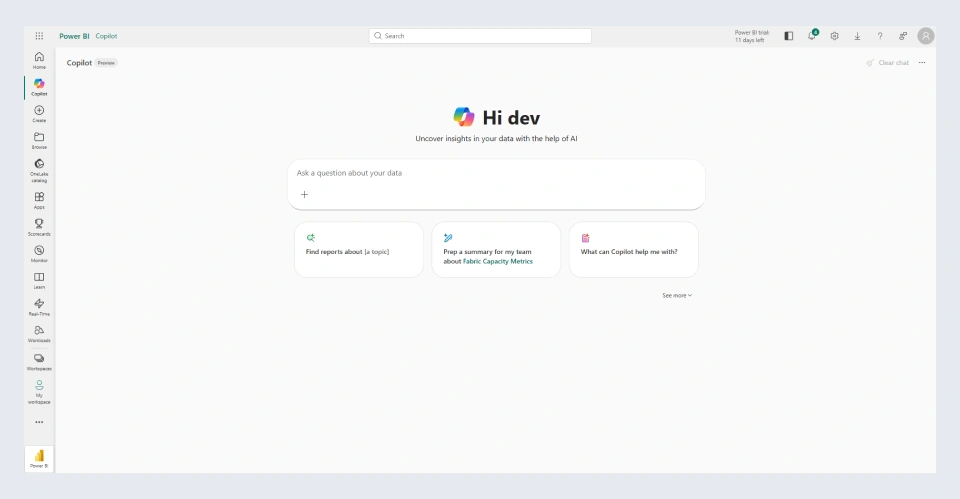
What You Can Do with Copilot in Power BI
Depending upon your practical application of AI, the conversational Copilot is used by business users to extract meaningful insights much faster and improve accessibility. Here are some Power BI Copilot features for business users:
1. Summarize Power BI Reports Instantly
Power BI generative AI, or Copilot, creates ready-to-analyze summaries from the visuals and reports used as prompts while generating the output. The grounded answers can be viewed in the Copilot report pane or in the standalone Copilot agent in Power BI. It can eliminate the cumbersome process of scanning multiple pages and provide a narrative overview that highlights what matters most. This capability supports faster alignment across teams and helps ensure that insights are not missed simply because they are buried in complex reports
2. Send Copilot Summaries via Subscriptions
The concise data summaries generated through Copilot can be emailed directly to the email subscribers and are available only for the standard Power BI subscription. Rather than sharing entire dashboards, teams can deliver short, readable summaries that highlight important movements and performance signals. Even when you have shared the reports via SharePoint or OneDrive, the summaries are still there in your email inbox. This encourages broader engagement with analytics and reduces dependency on manual reporting.
3. Search for New Content Across Power BI
With access to an extensive library of content shared by your data team, it can be hard to recall the specific items that answer your data question. That’s where the standalone copilot experience is useful to search Power BI content through natural language. Copilot understands intent and surfaces relevant content, helping users navigate Power BI more efficiently and discover assets they might not have known existed.
How Copilot Delivers Answers Without Modifying Dashboards
Traditional dashboards are built around predefined questions. Copilot reverses this model by allowing users to ask questions first and receive answers in terms of visuals or summaries directly from the data model.
1. Ask Ad-Hoc Questions Beyond Existing Visuals
Copilot allows users to directly ask questions against the Power BI semantic model using natural language. Instead of navigating tables, fields, or relationships, users can simply describe what they want to see. Copilot interprets the intent, identifies the correct measures and dimensions in the model, and returns a structured answer or visualization. This makes it possible to explore governed enterprise data without understanding the underlying data architecture.
2. Query the Power BI Data Model Using Natural Language
With Power BI Copilot, the data teams can query the semantic model using everyday language, reducing the complexity of writing DAX or SQL that requires technical expertise. It is modelled by the Q&A feature in Power BI that allows exploration of data in your own language, which can even be fun, as one question can lead to another interesting path of data visualization. The outputs are just the beginning. Later, you can refine data, uncover hidden patterns, zeroing in on the detailed view and zooming out for a broader view.
3. Understand Why Metrics Change with AI-Driven Insights
Understanding the drivers behind the metric change is important. Copilot in Power BI can analyze contributing factors and highlight correlations, such as regions, products, or channels influencing performance. It surfaces potential explanations that would otherwise require manual slicing and dicing. This diagnostic layer helps teams move beyond descriptive reporting toward a deeper understanding and faster action.
Copilot in Power BI: Real-World Use Cases
Copilot not just visualizes data, but it also clearly interprets it to save the team’s time and effort. It can help you prompt better, derive useful insights, and act with confidence without being a data scientist or developer. Here is how different roles realize the value of Copilot:
1. Executives: Instant Business Health Checks
Executives need quick access to KPI dashboards instead of detailed exploration. Using Copilot for Power BI functionalities, they can ask high-level questions and receive concise summaries of performance, risks, and opportunities. Likewise, companies can reduce the dashboard development time so that they can focus on strategic decision-making rather than navigating a complex dashboard-building process.
2. Analysts: Faster Exploration & Hypothesis Testing
Business analysts can use Copilot in Power BI to explore data trend patterns, test various assumptions, and validate the ideas before diving into the custom reports. Analysts can pose open-ended questions such as:
“Which customer segments drove the revenue increase last month?” or “Did discounts impact profit margins differently by region?”
Copilot interprets these questions, queries the semantic model, and returns results immediately, allowing analysts to quickly confirm or discard hypotheses. This shortens analysis cycles and frees up time for higher-value work. Likewise, Copilot becomes a partner in exploration rather than a replacement for modeling and visualization.
3. Business Users: Self-Service Answers Without Training
Whether it's a finance, marketing, or operational team, Copilot can become a go-to companion to get the answers they need without having technical knowledge about the data structures. It empowers analysts to ask questions like
- What were last month’s sales by region?”
- “Which products are underperforming this quarter?”
- “How is customer churn trending compared to last year?”
Based on that, Copilot recognizes the intent and provides correct measures, leaving the technical complexity behind.
Analyzing the Business Impact of Copilot in Power BI
Copilot in Power BI helps organizations move beyond usage statistics and understand how generative AI contributes to real business outcomes. By linking Copilot usage with outcome metrics such as productivity, revenue, or operational performance, teams gain a clearer picture of where Copilot creates measurable value and where additional adoption can drive greater impact.
Key ways organizations use this insight include:
- Identifying which Copilot usage behaviors influence specific business outcomes.
- Understanding how high-performing employees use Copilot to achieve better results
- Finding groups with the biggest opportunity to increase Copilot-assisted hours and value
Together, these insights support targeted enablement, stronger self-service analytics, and a data-driven approach to maximizing the ROI of Copilot in Power BI.
How to Prepare Your Power BI Environment for Copilot
Copilot in Power BI performs best when it is grounded in a well-designed semantic model and enriched with business context. While following standard modeling best practices is essential, Microsoft now provides dedicated “Prep data for AI” capabilities that help further optimize datasets for natural language interactions.
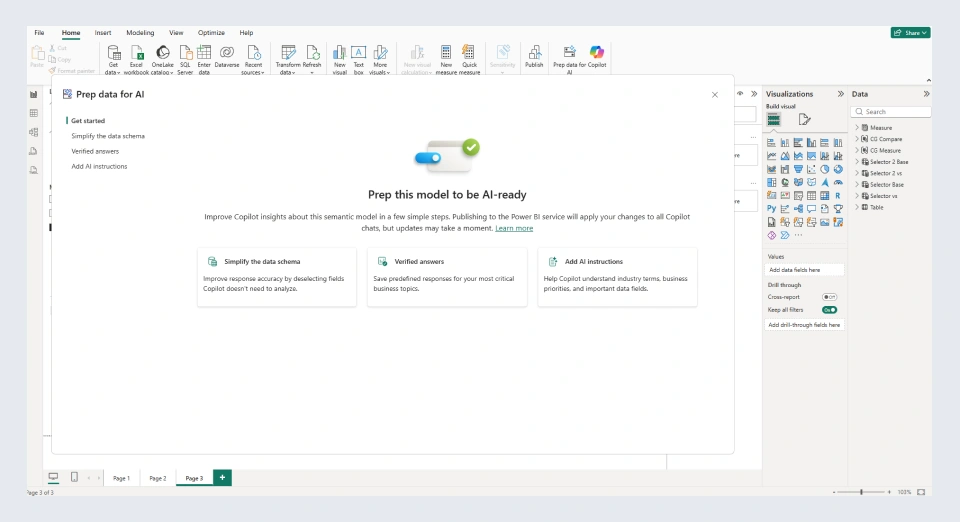
Power BI includes a unified “Prep data for AI” experience that allows authors to add context and guidance directly to the semantic model. These enhancements help Copilot better understand business terminology, interpret intent, and surface the most appropriate answers.
Key benefits of preparing data for AI include:
- Higher-quality, more accurate Copilot responses
- Reduced misinterpretation of measures and columns
- More consistent answers across users
- Increased trust in AI-generated insights
Frequently Asked Questions About Copilot in Power BI
1. How do I get instant answers in Power BI without creating new dashboards?
You can explore the Copilot Q&A feature on existing reports to get instant answers in Power BI. In this way, you can query data in a semantic model without requiring new visuals or reports.
2. What can Copilot in Power BI do that dashboards cannot?
Copilot in Power BI creates AI-driven summaries or reports ready for analysis using natural language. Unlike dashboards, it answers new questions, explains changes, and generates summaries on the fly.
3. Can business users ask questions directly in Power BI using Copilot?
Yes. Business users can type questions in plain language and receive responses without writing queries or formulas. This feature is available in the Power BI service and mobile apps.
4. Does Copilot in Power BI explain why numbers change?
Yes, it tells why numbers change by analyzing contributing factors and highlighting potential drivers behind metric movements. With the transformational power of Gen AI, Copilot can help you with many tasks for on-the-fly analysis.