
A consumer-goods supplier wanted to use Tableau Pulse and its AI assistant, Tableau Agent – to monitor daily store sales and inventory performance for a large retail partner. The goal was simple to state but hard to get right: a business user should be able to ask a plain-English question and get an accurate, trustworthy answer, with no dashboard building.
The raw data was a daily store-and-item extract with dozens of columns, sales, pricing, and several inventory measures. Pointed at Pulse as-is, it produced metrics that looked plausible but were often wrong, and an AI assistant that gave thin or misleading answers. The engagement was about closing that gap: shaping the data and the metrics so Pulse's answers were correct and useful.
Why Tableau Pulse Answers Were Wrong at First (the data-quality gap)
Tableau's own guidance is blunt on this point: your success with Pulse can only be as good as the quality of the data you use, and the AI insights are only as good as the data feeding them. Several issues were undermining that:
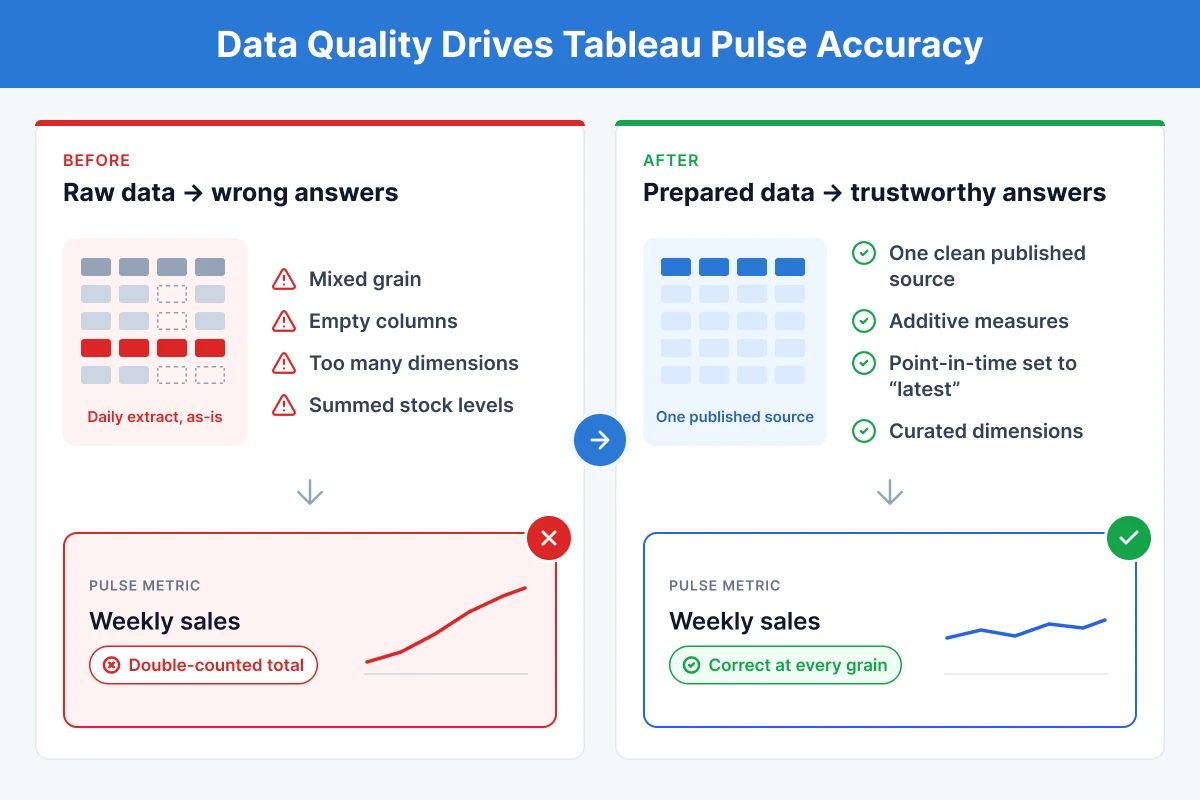
- Mixed grain inflated the numbers. The extract mixed record levels in one table, so simple sums double-counted. Totals looked reasonable but were overstated.
- Empty and point-in-time measures broke metrics. Some columns were effectively empty; others were stock levels (on-hand, on-order) that cannot be summed over time – summing a point-in-time value re-counts the same stock every day.
- Too many low-value dimensions. Dozens of columns, including duplicates and single-valued fields, gave the AI noise rather than signal and produced empty or shallow breakdowns.
- Questions didn't match the metric's time structure. Questions phrased outside the metric's supported comparison windows returned weak or no answers.
How to Optimize Tableau Pulse: Data Prep, Metrics, Dimensions
1. Prepared the data before Pulse, not inside it
A Pulse metric definition connects to a single published data source, so all shaping was done upstream. We modelled the data to the correct grain, removed duplicate and ETL-artifact columns, and published one clean, well-structured source. Complex logic was computed once upstream rather than repeatedly, to minimize duplication and build trusted data. We then built each definition through Pulse's guided steps: core definition (measure, aggregation, time dimension), time (comparison and offset), goal and threshold, insights, and governance.
2. Chose metrics that are correct at any time granularity
We deliberately built the headline metrics as additive measures (simple sums and averages) so they stay correct whether viewed daily, weekly, or monthly. Point-in-time inventory measures were handled separately – configured as “latest point in time” / non-cumulative, exactly as Tableau advises for balances or counts that should not be summed over time. Measures that were empty in the data were dropped rather than shown as flat, misleading metrics.
3. Built ratios with the advanced editor
Where a metric was a ratio (for example, an average selling price derived from sales divided by quantity), we used Pulse's advanced analytics editor to define the calculation, rather than relying on a simple field-and-aggregation pick. Tableau's documentation notes that when a measure's calculation aggregates multiple fields, a null in any field makes the whole value null for that date, so we followed its guidance to wrap the logic in an IF check and the ZN (zero-if-null) function, keeping the metric's timeline and dynamic date offset accurate.
4. Curated the dimensions
Tableau notes that adding the right dimensions is what gives real insight into what is driving a metric. We cut the dimension set down to a small group of clean, populated, clearly-named fields (geography, store, category, sale type) and confirmed each one actually varied. This gave the AI meaningful ways to break down a change – and removed the noise that had been producing empty breakdowns.
5. Configured the metric's insight metadata
We set the favorable direction so Pulse knows whether a rise is good or bad. This shapes the language and colour of the AI's insights, and we set the number format so values display correctly as currency or percentages, including in those insight narratives. Getting these right is what makes the metric's changes read clearly and consistently.
6. Set context so the right questions get asked
Finally, we made sure users would ask questions the metrics could actually answer. We used each metric's description and links to explain what the metric represents and where to dig deeper. With that context, users ask within the metric's granularity and dimensions and read the results correctly, rather than expecting analysis the metric isn't built for.
The Result
| Before | After |
|---|---|
| Sums double-counted; totals overstated | Additive metrics correct at every grain |
| Inventory metrics inflated when trended | Point-in-time measures set to “latest” – accurate |
| Empty / flat metrics on screen | Dead measures removed; only live metrics shown |
| Dozens of noisy dimensions, empty breakdowns | A curated, varied dimension set the AI can reason over |
| AI answers thin, sometimes misleading | Questions aligned to the metric structure – reliable answers |
The outcome was a Pulse experience where the numbers were trustworthy and the AI assistant answered everyday questions – what changed, which store or category drove it, and where stock was running low – accurately and in plain language. For teams pursuing the same conversational-analytics goal, our Tableau agent case study shows a related engagement.
Key Takeaways
- Pulse quality starts with the data. The single biggest lever is clean, correctly-grained, well-named data in one published source and not anything inside Pulse itself.
- Match the aggregation to the measure. Additive measures sum; stock and ratios do not. Getting this right is what keeps metrics correct across time granularities.
- Fewer, better dimensions beat many. A small set of clean, varied dimensions produces sharper AI insight than a long list of noisy ones.
- Configure the insight settings. Favorable direction shapes how the AI words insights, and the format keeps values clear, plus a good description gives viewers context.
- Set context so the right questions get asked. Clear descriptions and links help users ask within a metric's granularity and dimensions which is where enhanced Q&A answers best.
Tableau Pulse Best Practices: Do's and Don'ts
Generic, reusable guidance for anyone setting up Tableau Pulse to give reliable answers.
Do
- Prepare the data upstream. Model it to the right grain and publish one clean, single data source – Pulse is only as reliable as what you feed it. Do the joins, cleaning, and calculations in Prep or the warehouse before publishing, not after.
- Choose the right aggregation for each metric. Pick the aggregation and time behaviour that fits what the measure actually represents, so the number means the same thing at any time granularity. Getting this right is what keeps a metric trustworthy as people view it across different periods.
- Build ratios in the advanced editor. Define them as a proper calculation with IF/ZN null handling, so the timeline and offset stay accurate. Build the ratio from its parts rather than letting Pulse average a pre-calculated field.
- Keep dimensions few and clean. A small set of populated, clearly-named, varied fields gives the AI sharper, more useful breakdowns. Confirm each one actually has multiple values before including it.
- Fill in the metadata. Set the favorable direction so Pulse knows whether a rise is good or bad — it shapes the language of the AI's insights — and set a clear number format so values display correctly, including in those insights.
- Ask within the metric's structure. Phrase questions to match the metric's time granularity and supported comparisons, and scope by clear categorical dimensions. This is what lets the AI return a confident, grounded answer instead of a weak one.
Don't
- Point Pulse at raw data. A mixed-grain or multi-table extract will produce numbers that look right but are wrong. Plausible-but-wrong totals are worse than no metric, because people trust them.
- Sum point-in-time values. Adding a snapshot measure across dates double-counts the same value. Totals balloon with the size of the time window, which is an easy mistake to miss.
- Build ratios at row level. A row-level ratio that Pulse then averages gives the wrong result. An average of ratios is not the same as a ratio of totals.
- Overload the dimensions. Duplicate, single-valued, or high-cardinality fields create noise and empty breakdowns. More dimensions is not more insight as it dilutes the AI's focus.
- Leave metadata blank. Without a favorable direction, a drop can be framed as "good" when it isn't, confusing the reader; without a clear format or description, the metric is harder for people to read.
- Ask unsupported questions. Odd time windows, or breakdowns by high-cardinality fields, tend to fall flat. Stay within the metric's granularity and its defined dimensions.
- Show dead metrics. A measure that's empty or constant in the data adds nothing but a flat line. Profile the data first and drop anything that won't tell a story.
Note
These optimizations improve the accuracy and usefulness of Pulse's answers; they do not turn Pulse into a deep-analysis tool. Pulse and Tableau Agent are best positioned for quick, everyday monitoring and questions, complementing dashboards and Tableau Desktop for detailed, exploratory analysis. As Tableau itself notes, the AI can occasionally offer plausible-sounding insights that are not fully grounded, citations are provided so answers can be validated, and the system never lets the language model perform the statistical math. For teams ready to go further, Tableau Knowledge extends this foundation giving AI agents a trusted knowledge graph of business context to reason on, on top of well-prepared metrics.
Work with NeenOpal on Tableau Pulse
Getting Pulse and Tableau Agent to give answers your business can trust starts with the right data and KPI definitions. Explore our Tableau consulting services to see how we help teams enable Pulse and get their Tableau estate ready for Agent.
Sources: Tableau Pulse official product documentation (metric creation, data source requirements, alerts) and Tableau's enhanced Q&A best-practice guidance, supplemented by Tableau community best practices. Client and dataset details have been anonymized.