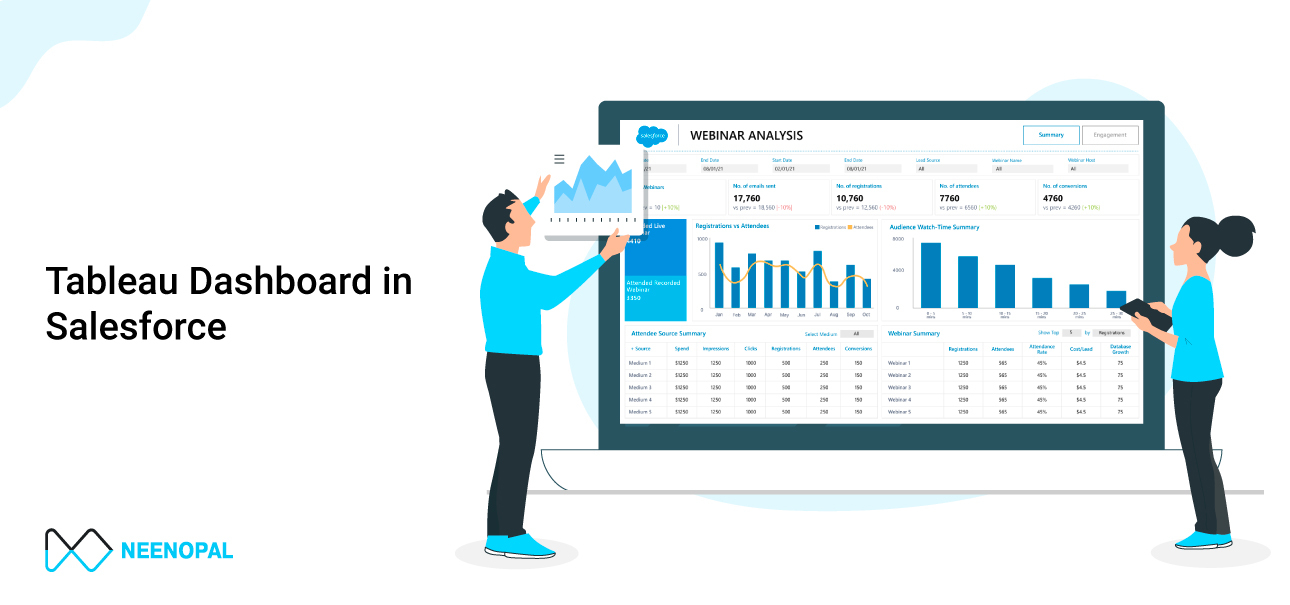
|
To embed a Tableau dashboard in Salesforce, enable the native Tableau View Lightning Web Component (Setup → Tableau Embedding), turn on token-based single sign-on, connect Tableau Cloud or Tableau Server via a connected app, then drag the Tableau View component onto any Lightning page and paste your dashboard's Share URL. No AppExchange installation is required. |
Sales teams live in Salesforce; insights often live in Tableau. Embedding Tableau dashboards directly into Salesforce Lightning pages closes that gap — account managers see pipeline, receivables, and account analytics in the same screen where they work, without learning Tableau or switching tools. Salesforce's own research consistently ties in-context analytics to higher CRM adoption and faster decision cycles, which is why embedded analytics is now the default pattern we implement in our Tableau consulting services engagements.
What Changed: Tableau Viz LWC Is Retired (Important)
If you followed older tutorials that pointed to the AppExchange, stop: the Tableau Viz Lightning Web Component was retired from Salesforce AppExchange in May 2024 and replaced by the native Tableau View component built directly into the Lightning App Builder. Since then, Salesforce has also shipped the Tableau Pulse LWC for embedding AI-generated metric insights, and Tableau Next dashboards can now be added to Lightning pages. This guide covers all current methods as of 2026.
Why Embed Tableau Dashboards in Salesforce?
-
Insight where work happens: reps and account managers get Tableau visual analytics inside Lightning record pages — no context switching, no separate login.
-
Higher dashboard adoption: embedded views remove the two biggest adoption blockers — tool unfamiliarity and re-authentication friction.
-
Record-level context: built-in filtering shows each account, opportunity, or user exactly their slice of the data automatically.
-
One governed source of truth: Tableau remains the analytics layer across the enterprise; Salesforce simply becomes another (high-traffic) surface for it.
Prerequisites
-
Salesforce Lightning Experience with administrator privileges (Classic requires a different method — covered below).
-
A dashboard published to Tableau Cloud, Tableau Server, or Tableau Public.
-
Tableau site administrator access if you want single sign-on (recommended for any production rollout).
-
For record-page filtering: a field in your Tableau view that maps to the Salesforce record ID (e.g., Account ID).
Method 1: Embed with the Native Tableau View Lightning Web Component (Recommended)
Step 1 — Turn on Tableau Embedding in Salesforce
In Salesforce, go to Setup, search for Tableau, and open Tableau Embedding. Select Turn on Tableau View Lightning Web Component and — for a seamless experience — Turn on token-based single sign-on authentication. Salesforce displays an Issuer URL and JWKS URI on this screen; you'll need both in Step 2.
Step 2 — Create a Connected App in Tableau (SSO)
In Tableau Cloud (or Server), open Settings → Connected Apps → New Connected App → OAuth 2.0 Trust. Paste the Issuer URL and JWKS URI copied from Salesforce, then select Enable connected app. This JWT-based trust is what lets Salesforce users view embedded Tableau content without signing in again. Full details are in Tableau's seamless authentication documentation. Note that the Tableau View LWC supports SAML as its SSO method, and the SAML IdP for Tableau must be the Salesforce IdP or the same IdP your Salesforce instance uses.
Step 3 — Add the Tableau View Component to a Lightning Page
-
Open the App, Home, or Record page where the dashboard should appear, click the Setup gear, and select Edit Page.
-
Search for 'Tableau' in the components panel and drag the Tableau View component onto the canvas.
-
In Tableau, open your dashboard, click Share → Copy Link, and paste that URL into 'Enter the Viz URL'.
-
Set the view height, toggle the Tableau toolbar and tabs, and optionally add component-visibility rules.
-
Save and activate the page. The dashboard renders live inside Salesforce.
Step 4 — Configure Filtering (Where the Real Value Is)
Context filtering: on a record page, select 'Filter visualization based on the page' and the component automatically filters the Tableau view to the current record — provided the view contains a field holding the record IDs (e.g., a field named Account ID on an Account page).
Advanced field mapping: for finer control, map a specific Tableau field or parameter to a qualified Salesforce field (e.g., Tableau 'User ID' → Salesforce 'Owner ID'). When values match, the view filters automatically. Enter field names exactly as defined in the data source. See Tableau's official embedding guide for the full reference.
Method 2: Visualforce or Canvas Adapter (Salesforce Classic)
The Tableau View LWC runs only on Lightning Experience. For Salesforce Classic, embed via a Visualforce page (an iframe wrapping the Tableau embed URL, optionally driven by Apex for dynamic record filtering) or the Salesforce Canvas Adapter for Tableau. These routes demand developer effort and manual maintenance, so we typically recommend them only where a Lightning migration isn't yet feasible — something our Salesforce consulting services team scopes case by case.
Method 3: Embed Tableau Pulse Metrics (AI-Powered Insights)
The Tableau Pulse LWC lets you drag AI-generated metric insights from Tableau Cloud onto App, Home, and Record pages — even the Salesforce Utility Bar and Experience Cloud. Instead of a full dashboard, users see plain-language summaries of how a metric is trending and why. Pulse embedding requires token-based seamless authentication (it's optional for Tableau View, mandatory for Pulse). Note: the packaged 'Pulse for Salesforce' app was withdrawn from net-new sales on August 1, 2025 — the Pulse LWC is the current path.
Method 4: Tableau Next Dashboards
If your org is on Tableau Next (Salesforce's agentic analytics platform on Data Cloud), Next dashboards can be added to Lightning pages natively — no separate authentication hop, since Tableau Next lives inside the Salesforce ecosystem. For organizations planning semantic layers and conversational analytics on top of it, see how we built this for a client in our Tableau Concierge conversational analytics case study.
Which Embedding Method Should You Use?
|
Method |
Best for |
Auth |
Effort |
|---|---|---|---|
|
Tableau View LWC (native) |
Dashboards on Lightning pages — the default choice |
SAML SSO / token-based (optional but recommended) |
Low — drag, drop, paste URL |
|
Tableau Pulse LWC |
AI metric summaries, exec surfaces, Utility Bar |
Token-based seamless auth (required) |
Low–medium |
|
Visualforce / Apex |
Salesforce Classic, deep custom logic |
Manual (trusted tickets / SAML) |
High — developer build |
|
Canvas Adapter |
Classic orgs needing signed-request auth |
Signed request |
Medium–high |
|
Tableau Next dashboard |
Data Cloud–native orgs, agentic analytics roadmap |
Native to Salesforce |
Low (requires Tableau Next licensing) |
Connecting Salesforce Data to Tableau (the Other Direction)
Embedding is one half of the integration; the other is analyzing Salesforce data in Tableau. Tableau's built-in Salesforce connector (Connect → Salesforce, sign in, grant access) lets you use standard predefined queries or build custom object joins on the canvas. Data lands as an extract: refresh it via Data → [data source] → Extract → Refresh (Incremental or Full). Incremental refreshes pick up Salesforce objects added or changed since the last refresh within the preceding 30 days. For high-volume orgs we usually replace direct extracts with a warehouse-based pipeline (Salesforce → cloud data warehouse → Tableau) — the pattern behind most of our business intelligence consulting architectures.
Limitations to Plan Around
-
Lightning only: the Tableau View LWC doesn't run in Salesforce Classic or Marketing Cloud.
-
Filtering scope: context and advanced filtering work only on Lightning record pages — not Home or App pages.
-
Not real-time by default: the Salesforce connector produces extracts; near-real-time needs a live warehouse connection or CDC pipeline.
-
4,096-character field limit: longer Salesforce text fields fail to extract via the connector.
-
Multi-connection restriction: Salesforce connections aren't supported inside multi-connection (cross-database join) data sources.
-
Performance is inherited: a slow dashboard embeds as a slow component and drags the whole record page with it. If load times exceed a few seconds, run it through a performance pass first — this is exactly what our Tableau dashboard optimization service addresses.
Real-World Example: Account Analytics Dashboard in Salesforce
Here's the pattern in production. For a B2B client, we embedded an account analytics dashboard on the Salesforce Account page using the Tableau View LWC with context filtering on Account ID. Every account manager opens a record and immediately sees, for that account:
-
Total accounts, open vs. closed opportunities, and receivables at a glance.
-
Account source analysis — which acquisition channels produce the most valuable accounts.
-
Rating-based revenue views (Hot / Warm / Cold) that tell managers where attention pays off.
-
Top industries and top accounts by annual revenue, for territory and expansion planning.
Adoption was immediate precisely because nobody had to 'go to Tableau' — the insight arrived inside the workflow. The same pattern extends to customer-facing portals through Tableau embedded analytics.
Best Practices for 2026
-
Always configure SSO first. An embedded dashboard that asks users to log in twice will not get adopted.
-
Design for the container. Build views sized for the Lightning region (fixed height, minimal toolbar, mobile-checked) rather than dropping in a full-screen dashboard.
-
Filter to the record. Context-filtered views outperform generic dashboards on every adoption metric we track.
-
Govern row-level security in Tableau, not with obscurity — embedded distribution widens the audience, so user filters and RLS must be watertight.
-
Test in a sandbox, then roll out with component-visibility rules so each profile sees only relevant analytics.
-
Re-evaluate annually. The Viz LWC retirement shows how fast this integration surface moves — Pulse and Tableau Next will keep shifting the default answer. If you're still weighing platforms, our Tableau vs Power BI comparison covers the enterprise decision framework.
Frequently Asked Questions
How do I embed a Tableau dashboard in Salesforce Lightning?
Enable the Tableau View Lightning Web Component under Setup → Tableau Embedding, then edit any Lightning page, drag the Tableau View component onto the canvas, and paste the dashboard's Share URL from Tableau Cloud, Server, or Public. Configure token-based SSO via a Tableau connected app so users aren't asked to sign in again.
Is the Tableau Viz Lightning Web Component still available?
No. The AppExchange Tableau Viz LWC was retired in May 2024. Its replacement, the native Tableau View component, ships inside Salesforce Lightning App Builder — no installation required — and adds token-based single sign-on and improved record-page filtering.
Can I embed Tableau dashboards in Salesforce Classic?
Not with the native component — it supports Lightning Experience only. For Classic, embed through a Visualforce page (iframe plus optional Apex for dynamic filtering) or the Salesforce Canvas Adapter for Tableau. Both are developer-built solutions with higher maintenance overhead.
Do users need a Tableau license to view embedded dashboards?
Yes — viewers of content embedded from Tableau Cloud or Tableau Server need a Tableau account with at least a Viewer license on that site. Only dashboards published to Tableau Public can be viewed without one, which is rarely appropriate for CRM data.
How does filtering by Salesforce record work?
Two ways. Context filtering: the component matches the record page's ID against a same-named field in the Tableau view (e.g., Account ID) and filters automatically. Advanced mapping: you explicitly pair one Tableau field or parameter with one Salesforce field (e.g., User ID → Owner ID); when values match, the view filters. Both work only on Lightning record pages.
Is embedded Tableau data real-time?
Not by default. Tableau's Salesforce connector creates extracts refreshed on a schedule (incremental refreshes look back 30 days for changed objects). For near-real-time embedded analytics, connect Tableau live to a cloud data warehouse fed by streaming or CDC from Salesforce.
What is the difference between the Tableau View LWC and the Tableau Pulse LWC?
The Tableau View LWC embeds full interactive dashboards. The Tableau Pulse LWC embeds AI-generated metric insights — trend summaries in plain language. View LWC treats seamless token authentication as optional; Pulse LWC requires it. Many orgs use both: Pulse for at-a-glance metrics, View for deep-dive dashboards.
Turn Embedded Dashboards into Adopted Dashboards
The mechanics of embedding take an afternoon; the value comes from what you embed — governed data, fast workbooks, record-level context, and security that holds up in front of customers. NeenOpal has delivered this integration across sales, finance, and customer-success teams as part of our Tableau consulting services. If your dashboards are built but slow, start with an optimization pass; if you're starting from scratch, start with the data model.