

Most teams open Amazon Quick every morning and type the same prompt: "summarise yesterday's pipeline", or "fill in the missing fields". The real value is not the prompt. It is turning that repeated prompt into a scheduled workflow that reads from your systems, reasons with AI, and writes the result back, with a human approving before anything changes. This guide walks through how to do that in Amazon Quick using three building blocks: Connectors, Quick Flows and Quick Automate.
What is Amazon Quick automation?
Amazon Quick is AWS's agentic analytics and automation application. Automation in Quick means moving beyond asking questions in a chat agent to scheduled or triggered jobs that connect to your data, run AI reasoning, and deliver or write back a result. You build it with three things: Connectors (how Quick reads from and writes to your systems), Quick Flows (scheduled, connector-based workflows), and Quick Automate (for custom tools, code, agents and human review).
Start with Connectors: how Quick reads and writes to your systems
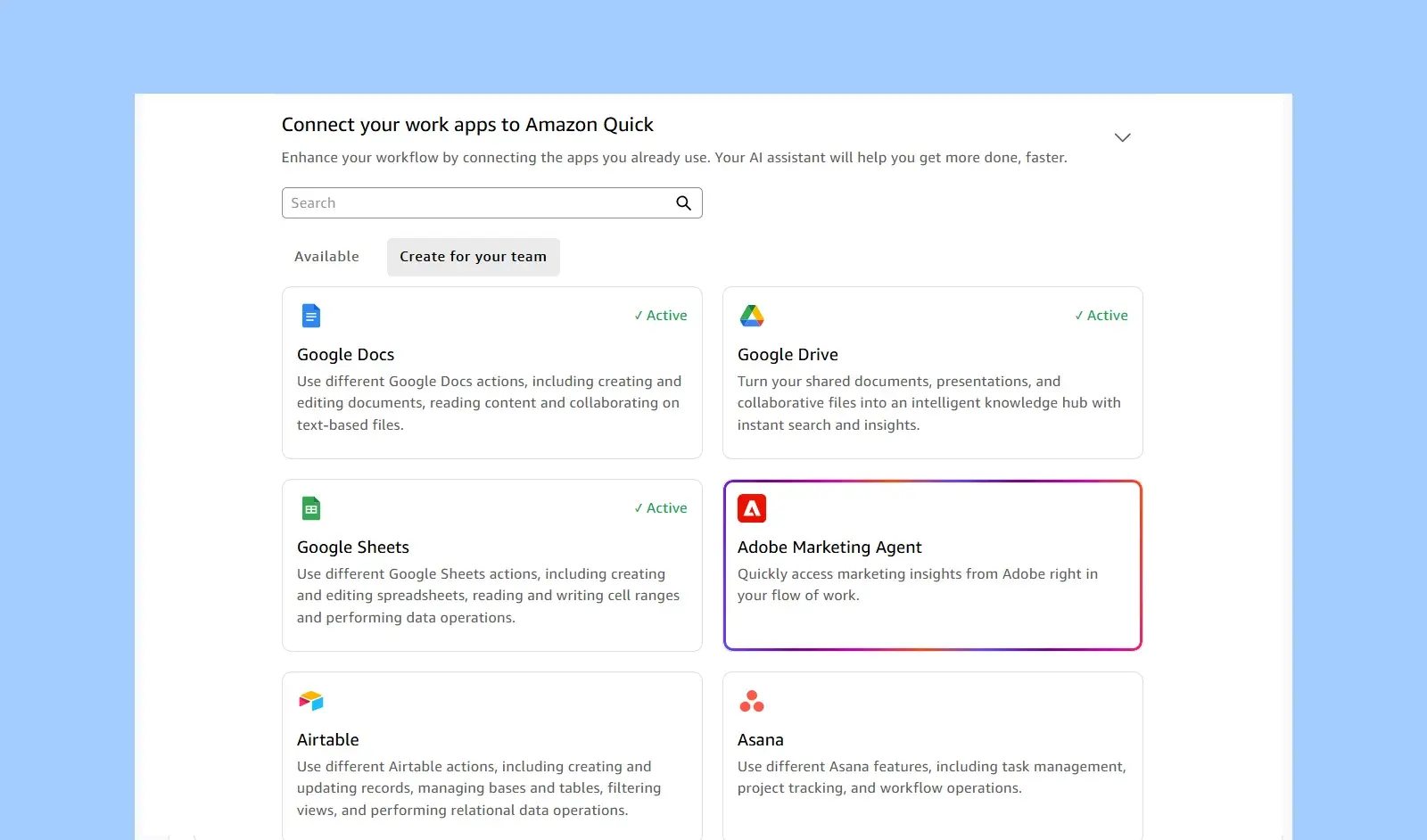
Connectors are the integrations that let Quick read from and write back to source systems. Out of the box, Quick connects to business apps such as Google Drive, Google Docs, Google Sheets, Airtable, Asana, Zoom and Webex, so a chat agent can read and, where the connector allows, write data directly. For anything custom, Quick also supports MCP connectors and REST API connectors. Connectors are the foundation that Flows and Automate stand on: data comes in, reasoning happens, results go out.
Quick Flows: turn a repeated prompt into a scheduled job
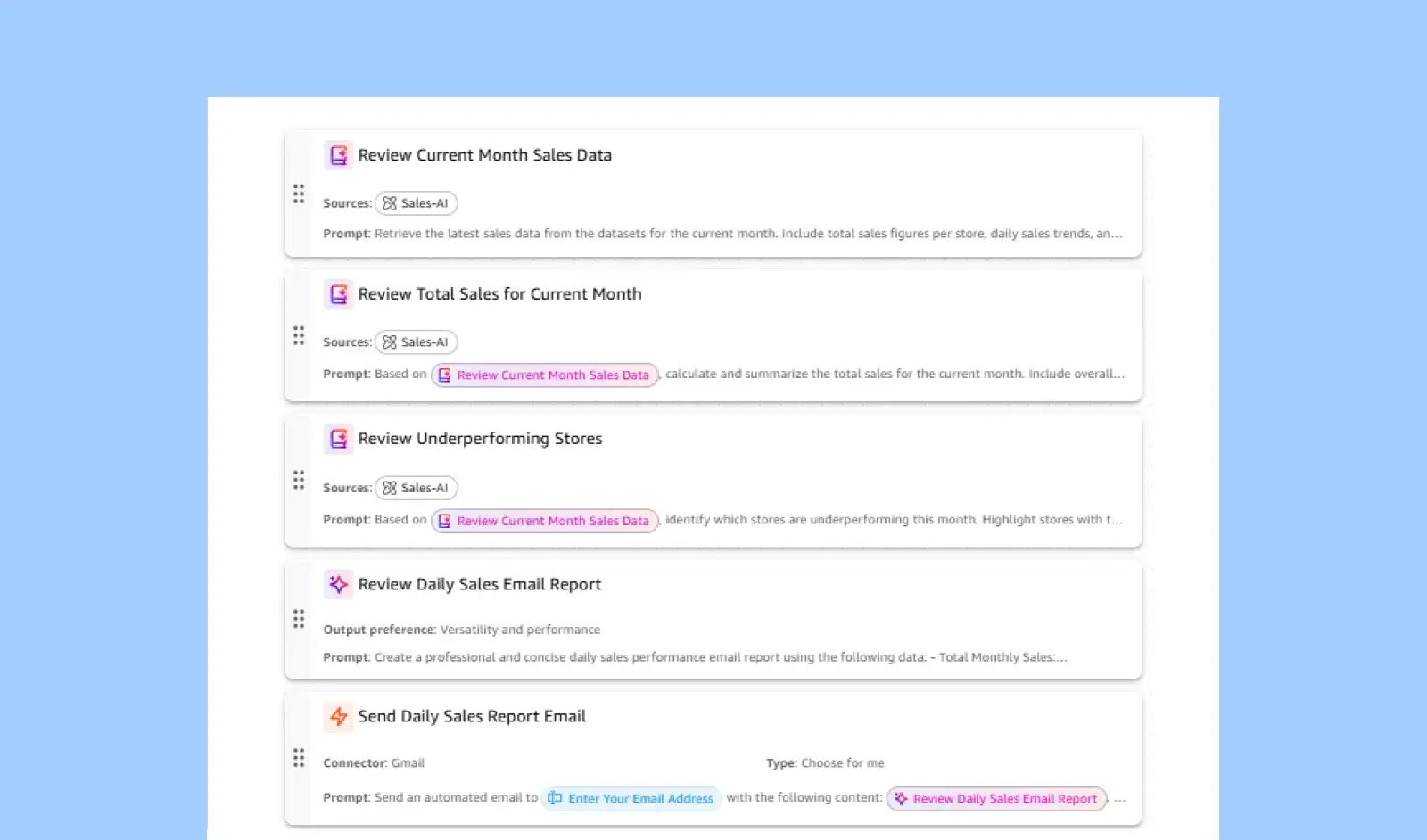
Quick Flows are built for recurring work. A Flow can chain several steps together using Quick's pre-built connectors and run on a schedule, so instead of opening Quick and typing the same prompt, the Flow delivers the answer where people already are.
Example: a team keeps asking the same weekly question, "how did we perform this week?" A Quick Flow triggers every week, generates the performance summary from the dataset, and emails it directly, so no one has to open the platform to get it. Flows are the right tool when the workflow can run on pre-built connectors on a schedule.
Quick Automate: for custom tools, code and human review
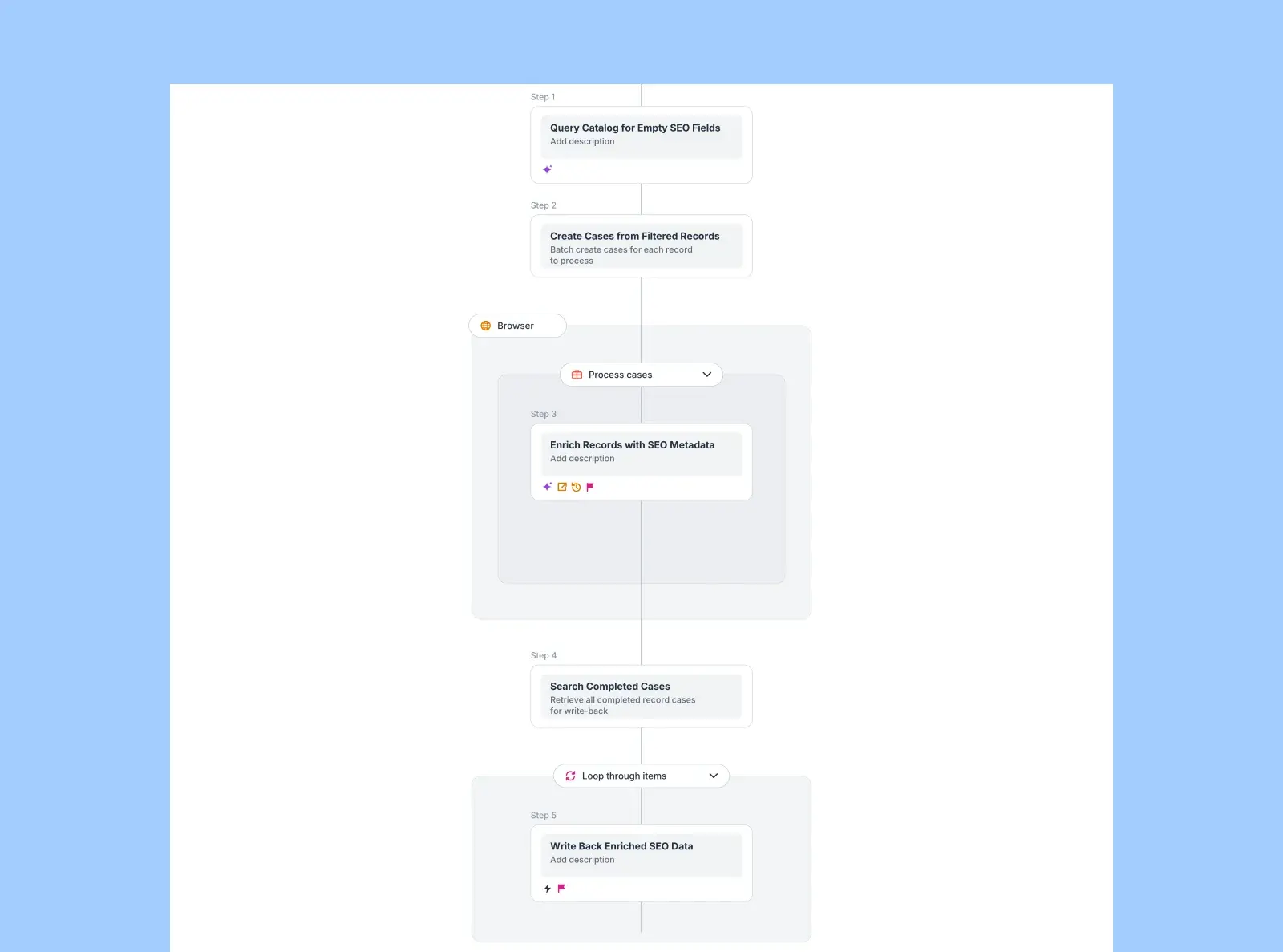
You reach for Quick Automate when a workflow goes beyond pre-built connectors. Automate is needed when you require custom MCP or REST API tools, code steps, custom agents querying your datasets, or a human-in-the-loop review before anything is written back.
Example: a content catalog has many records where the SEO fields, such as keywords and descriptions, are missing. A Quick Automate queries the catalog for records with empty SEO fields, enriches each one with AI (using web search where needed), and writes the enriched data back through a custom REST API connector. That read, reason, write-back loop, with custom tools and a review step, is exactly what Automate is for.
Quick Flows vs Quick Automate: which to use
Use a Quick Flow when the workflow runs on Quick's pre-built connectors, even across several steps, on a schedule, such as a weekly performance email. Use Quick Automate when you need custom MCP or REST API tools, code steps, custom agents querying your datasets, or a human-in-the-loop review. A simple test: if pre-built connectors can do the whole job on a schedule, it is a Flow. If you need custom tools, code, agents or a human to approve, it is Automate.
The gotcha: S3 and SPICE datasets are read-only
Here is the lesson most teams hit. In Amazon Quick, datasets backed by Amazon S3 or SPICE are read-only. Quick can run SQL queries against them to read data, but it cannot write back to them directly, by design, for security, because there is no direct write connector for S3.
Some connectors do support write-back. The Google Sheets connector, for example, can both read and write by command, which can serve as an alternative target. But to write back to S3 itself, you need a custom path. On this build, we created a custom REST API connector (hosted on AWS Lambda), shown below as "write-back", so that inside a Quick Automate the automation could write the enriched data back into S3 directly. If your automation needs to write back to an S3 or SPICE source, plan for that custom connector from the start. Getting the underlying data modelled and pipelined into Quick cleanly is a data engineering task worth doing up front.
How NeenOpal builds this
We help teams design and build these automations end to end: choosing Flows versus Automate, wiring up Connectors, building the custom MCP and REST API connectors for write-back, and setting up the custom agents that query your data. If you are planning this, explore our Amazon Quick consulting services, our wider business intelligence consulting, and our AWS consulting services.
FAQ
What is Amazon Quick automation?
Automating work in Amazon Quick means turning repeated prompts into scheduled or triggered jobs that connect to your data, reason with AI, and deliver or write back a result, built with Connectors, Quick Flows and Quick Automate.
What is the difference between Quick Flows and Quick Automate?
Quick Flows handle scheduled, multi-step work using Quick's pre-built connectors. Quick Automate is needed when you require custom MCP or REST API tools, code steps, custom agents querying your datasets, or a human-in-the-loop review.
Can Amazon Quick write back to S3?
Not directly. S3 and SPICE datasets are read-only in Quick. Use a connector that supports write-back, such as Google Sheets, or build a custom REST API connector (for example on AWS Lambda) to write back to S3.
What connectors does Amazon Quick support?
Built-in connectors include Google Drive, Google Docs, Google Sheets, Airtable, Asana, Zoom and Webex, among others, plus MCP and REST API connectors for custom integrations.