

Which tool to use, what won’t carry over, and how to avoid the mistakes that cause rework?
Running Tableau Server means running infrastructure: servers to patch, upgrades to schedule, capacity to plan. Tableau Cloud, the fully hosted version of the platform, takes that burden away. That is the appeal, and it is why more teams are asking how to make the move.
The migration itself is rarely a single button press. The right tool depends on your size and skills, some features work differently in the cloud, and a few things need to be rebuilt by hand. This guide walks through the decisions in the order you will face them.
In short
- Run Tableau’s free readiness assessment before you commit to anything.
- Pick the tool by size and skills: manual guide, Migration App, or Migration SDK. Don’t use the Content Migration Tool for Server to Cloud.
- Plan for on-premises data (Tableau Bridge), email-style usernames, SSO with MFA, and items that must be rebuilt.
- Validate permissions after cutover, then monitor with Admin Insights.
Why teams move, and when they shouldn’t
With Tableau Cloud, Tableau hosts and manages the platform for you. It always runs the latest version, and Tableau states that major upgrades are completed with zero downtime. Your team spends less time on servers and more time on data connectivity, user enablement, and building an analytics community.
Tableau is also clear that Cloud is not right for every Server customer. Compliance requirements or use-case compatibility can mean staying on Server, so review the differences below and confirm your plans with your Tableau account team before committing.
Check the differences before you commit
Cloud and Server are similar, but not identical. These are the differences most likely to affect a migration plan.
|
Area |
Tableau Server |
Tableau Cloud |
|
Hosting and upgrades |
Managed by you |
Managed by Tableau |
|
Sign-in |
Active Directory, Kerberos and LDAP supported |
SSO through SAML or OIDC, or Tableau ID. MFA is required for all users. No direct Active Directory, Kerberos or LDAP |
|
Cube data sources |
Supported |
Not supported. Connect to the underlying database instead |
|
Custom connectivity |
Connector SDK and Tableau Exchange connectors |
Limited. Hyper API and Tableau Bridge can extend connectivity |
|
Observability |
Direct repository access |
Admin Insights project instead of the repository |
|
Licensing |
Role and core-based |
Role-based subscriptions. No perpetual or core-based licences, and no Guest user |
|
Customisation |
Wide |
Limited. No custom URLs, fonts or welcome banners |
Two more points for admins. Tableau Cloud applies site capacity limits on storage and tasks, so compare your repository data with those limits. The REST API on Cloud works at the site level and relies on personal access tokens, so plan to refactor any automation that uses other authentication.
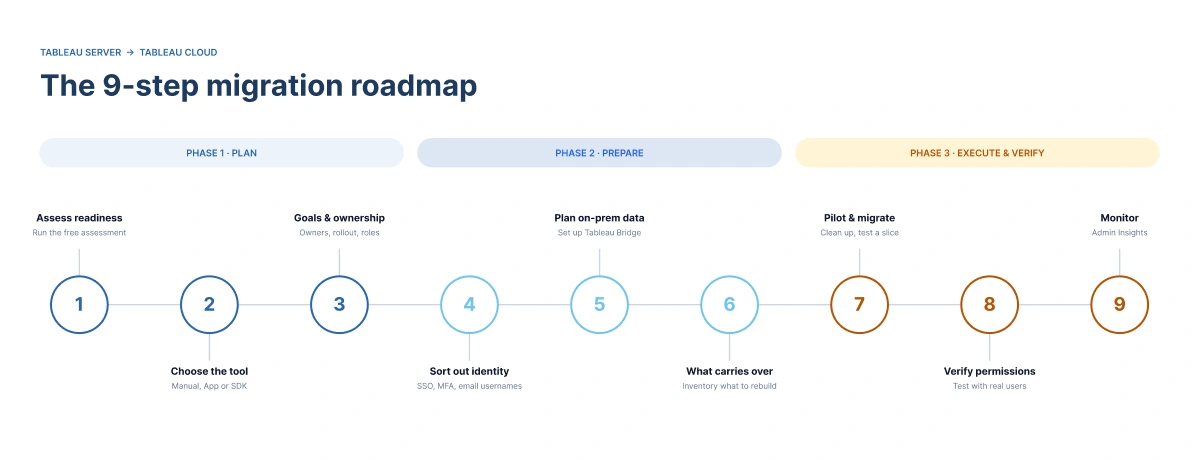
Step 1: Run the Cloud Migration Readiness Assessment
Start with the free Cloud Migration Technical Readiness Assessment on Tableau Exchange. It examines how you use Tableau Server and flags use cases that may need to be adapted before you move, including which of your data sources are supported on Cloud. A few practical notes:
- It supports Tableau Server 21.3 and higher.
- It needs access to the Tableau Server repository, so enable that first.
- Tableau recommends removing stale content before running it and before migrating.
- With more than 1,000 users, Tableau says other technical considerations probably apply beyond what the dashboard captures. Involve your account team or an experienced partner.
Step 2: Choose the right migration tool
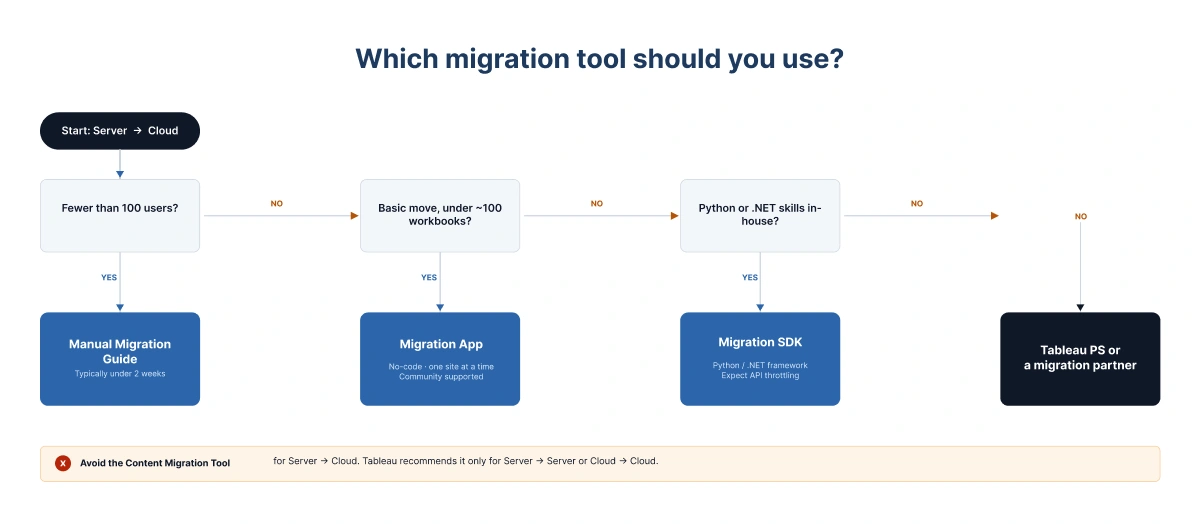
Choosing the wrong tool is one of the most avoidable planning mistakes. Tableau’s guidance depends on your size and skills.
|
Tool |
Best for |
Skills needed |
Watch out for |
|
Manual Migration Guide |
Fewer than 100 users |
Admin comfortable with a manual process |
Tableau says this typically takes under two weeks at that size. It is closer to a “port” than a migration, and users will need to update some content afterwards |
|
Migration App |
Basic migrations of fewer than about 100 workbooks |
None. No developer effort |
Community supported and “use at your own risk”. One site at a time. Runs from a personal Windows or macOS machine. Embedded integrations need separate work |
|
Migration SDK |
Larger or more complex Server to Cloud moves |
Python or .NET, junior developer level and above |
A framework, not a no-code app. Meant for a one-time migration. Subject to Cloud REST API throttling, so expect delays |
|
Content Migration Tool |
Server to Server, or Cloud to Cloud |
Low (user interface) |
Tableau does not recommend it for Server to Cloud |
If you have more than 100 users and nobody who knows Python or C#, Tableau suggests leaning on its Professional Services team or an experienced migration partner rather than forcing the SDK. Deployment size and available skills should drive the decision, not habit.
Step 3: Set goals, ownership and a rollout plan
Tableau’s own SDK guidance is blunt: without stated goals, you cannot know if the migration succeeded. Write goals you can measure, such as retiring Server by a set date, migrating a target percentage of content and verifying it works, or reducing total cost of ownership. Then agree two things before work starts.
- Ownership. Centralised (one team, simplest, typical for a single site under about 500 users), organisational segmentation (by business unit), or site-by-site (following your existing Server sites).
- Rollout. All at once, or phased by business unit or site. Phased is more common above about 500 users.
Assign named people to the key roles: executive sponsor, project manager, technical lead, readiness assessment owner, Cloud site admin, and testing lead. Projects without stakeholder commitment tend to suffer scope creep and long timelines.
Step 4: Sort out identity early
Identity is where migrations often stall. On Cloud, every user must use multi-factor authentication. You can use an identity provider over SAML or OIDC, or Tableau’s built-in Tableau ID with MFA. If you use Okta, Azure AD or OneLogin, you can also provision users and groups automatically with SCIM.
Usernames need attention too. Cloud usernames must be in email format, and Server has no such rule. The Migration App maps names using an email already in the username, the email on the user’s profile, a default domain, or a CSV you supply, and users that can’t be mapped are not migrated. Decide your mapping before you run anything.
Step 5: Plan for on-premises data
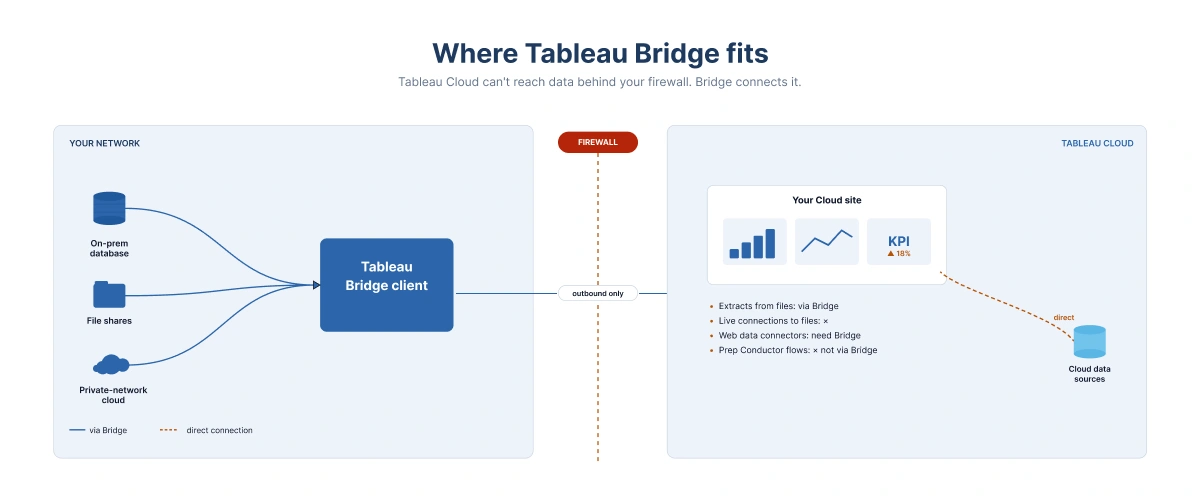
Tableau Cloud connects directly to many cloud data sources, but it cannot reach data behind your firewall. For on-premises data and private-network cloud data, use Tableau Bridge, a client installed inside your network that keeps those sources fresh for Tableau Cloud. Bring Bridge into the architecture discussion early, since it affects network setup, ownership, and how refreshes run. Some specifics worth knowing:
- Bridge supports file-based data for extracts, but not live connections to files.
- Bridge does not run Tableau Prep flows with Prep Conductor. Tableau documents a separate approach for on-premises data in flows.
- Workbooks with embedded extracts that take more than 10 minutes to refresh should be published as separate data sources and refreshed individually.
- Web data connectors on Cloud need Bridge to run extract refreshes
Step 6: Know what will and won’t carry across
Many guides say schedules, flows and subscriptions never migrate. The real answer depends on the tool and version, so check Tableau’s current documentation for yours. The older Content Migration Tool does not migrate extract refresh schedules, and users must resubscribe. The Migration SDK covers more. Based on the latest Tableau documentation:
|
Item |
Status with the Migration SDK |
|
Users, groups, projects, permissions, data sources, workbooks, custom views |
Migrated |
|
Extract refresh schedules and subscriptions |
Migrated and converted to Cloud-compatible schedules. Schedule names, priority, execution order and multi-day weekly schedules are not carried over. Set the time zone correctly |
|
Prep flows and flow run schedules |
Listed as supported in the content types table, but the SDK’s planning page lists Prep flows as a manual item. Test with your own flows |
|
Data-driven alerts, comments, collections, revisions, user settings, usage data |
Not migrated. Recreate or accept the loss |
|
Data policies, virtual connections, data roles (Data Management) |
Not migrated. Recreate on Cloud |
|
User filters and URL actions |
Need a workbook or data source transformation |
|
Embedded solutions, extensions, server customisations |
Manual work |
The Migration App is built on the SDK, but its own README lists a narrower set of resources (users, groups, projects, data sources, workbooks, extract refresh tasks and custom views), so confirm the scope of the version you download. Whatever tool you use, inventory your schedules, flows, subscriptions, and alerts before the move so nothing silently stops running after cutover.
Step 7: Migrate in a controlled, tested way
- Clean up first. Retire stale workbooks, data sources, projects, and flows before you move them.
- Pilot before the full run. Migrate a representative slice, review it, then do the rest.
- Use personal access tokens. Both Tableau Server and Tableau Cloud need one for the person running the migration.
- Expect throttling. Tableau Cloud limits REST API usage to 40,000 calls per user per site per hour, and some calls have lower limits, so large migrations will pause.
- Keep the manifest. The Migration App and SDK can save progress so a stopped migration can resume.
Step 8: Verify permissions and content
Permissions are a frequent source of post-migration issues. Even when a tool migrates them, review the results. Spot-check across projects, groups and key roles, ideally signing in as real users, to confirm people can see what they should and nothing more. Also open the content that matters most: check extracts refresh, subscriptions arrive, embedded views still load, and any automation using the REST API still authenticates.
Step 9: Monitor with Admin Insights
Once you are live, use Admin Insights, a Tableau Cloud project of pre-built data sources and dashboards, to watch usage, performance and stale content. It holds 90 days of data by default and 365 days with Advanced Management, which also adds the Activity Log. Use it to confirm adoption, spot problems early and identify content nobody is using. Tableau Catalog also indexes migrated content, usually within 48 hours.
Common pitfalls
|
Pitfall |
How to avoid it |
|
Using the Content Migration Tool for Server to Cloud |
Use the Migration SDK or Migration App |
|
Underestimating the SDK’s effort |
Budget developer time, or bring in Professional Services or a partner |
|
Using the Migration App well beyond its size |
Keep it for basic migrations of fewer than about 100 workbooks |
|
Overlooking on-premises data |
Identify sources early and plan Tableau Bridge |
|
Assuming everything transfers |
Inventory schedules, flows, subscriptions and alerts, and test them |
|
Ignoring sign-in changes |
Plan SSO, MFA and email-format usernames up front |
|
Skipping permission checks |
Test with real accounts across projects, groups and roles |
Pre-launch checklist
☐ Readiness assessment run and findings reviewed
☐ Stale content removed
☐ Goals, ownership, rollout strategy and roles agreed
☐ Migration tool chosen to match size and skills
☐ SSO, MFA and username mapping decided
☐ On-premises data sources identified and Bridge planned
☐ Schedules, flows, subscriptions and alerts inventoried
☐ Pilot migration completed and reviewed
☐ Permissions tested with real user accounts
☐ Admin Insights monitoring ready for go-live
Final thoughts
A successful Server to Cloud migration comes down to disciplined preparation: assess first, pick the right tool, plan for identity and on-premises data, rebuild what does not transfer, and verify permissions and usage afterwards. Follow that sequence and the move stays predictable, with few surprises after go-live.
Planning a move to Tableau Cloud?
Talk to our team about a free Tableau Cloud migration readiness review.