

Market and competitor research has always carried a hidden tax. An analyst wants to know how the business is performing against the market, so they spend days searching for external data, pulling it together, and lining it up against internal numbers by hand. Amazon Quick removes most of that work. Its Research mode turns a plain-language prompt into a full business research report in minutes, and its Excel and browser extensions let people analyze data without leaving the tools they already use. Here is how both features work and why they matter.
In short: Amazon Quick Research generates a structured report that compares your internal data against the market from a single prompt, and Amazon Quick extensions bring the same AI agent into Excel and your browser so analysis happens in context, with no platform switching.
What is Amazon Quick Research?
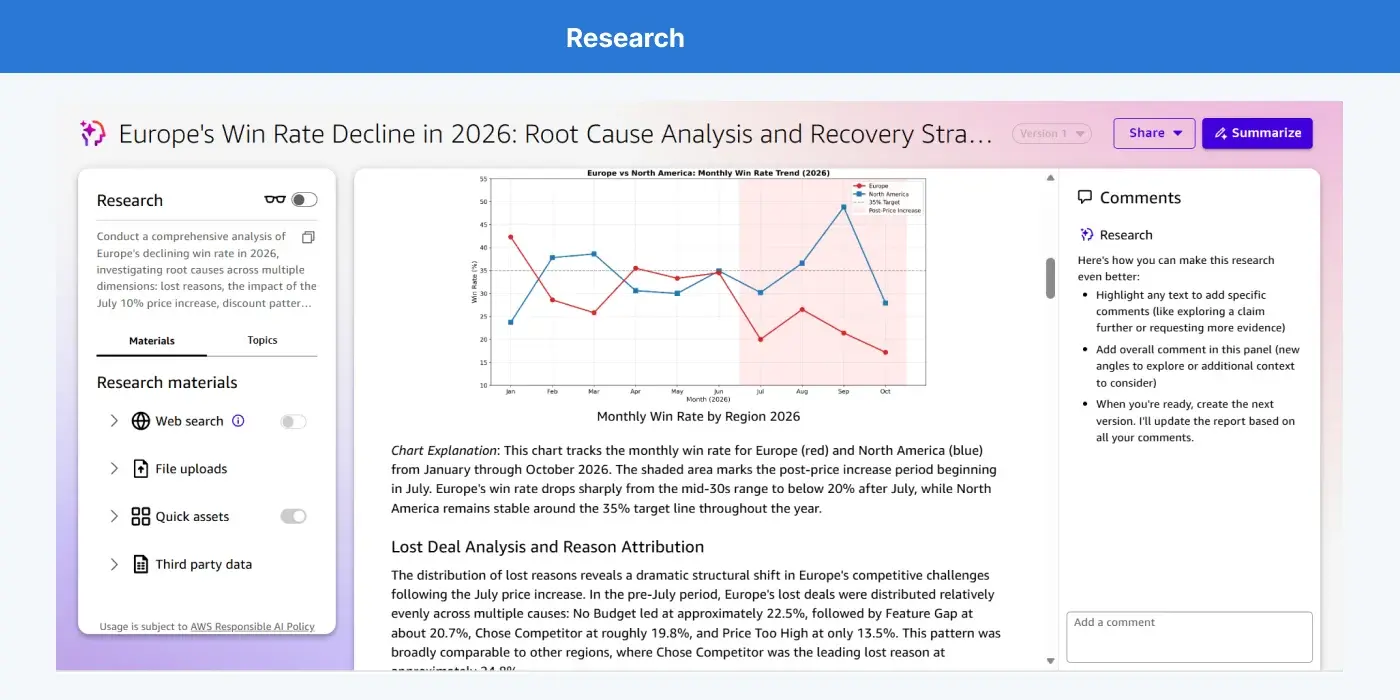
Amazon Quick Research is a mode inside Amazon Quick that produces a complete business research report from a plain-language request. You start a research run, describe what you want to understand, for example your July sales for a particular retail or automotive business, and within minutes Quick returns a structured report. How long it takes depends on the depth you choose: a Fast run takes roughly 5 to 10 minutes, and a Deep run goes further for higher-depth analysis, roughly 20 to 30 minutes. That report includes hypotheses about what is driving a trend, comparisons of your numbers against external benchmarks, charts across multiple factors, and the sources it drew on. Instead of a dashboard that only shows what happened, you get a research document that tries to explain why.
How Amazon Quick Research works
There are two ways to start a research run, and the flow from there is deliberately simple:
- From the Amazon Quick chat, enable research mode and write your prompt, or
- From the main navigation, choose Research, then New Research, and enter your objective.
Once you have started, the run follows a few clear steps:
- Describe your question. Write what you want to understand and the data it concerns, such as researching a month of sales for a specific store type or region.
- Optionally pick a mode. Choose Fast for a quicker, medium-depth report (about 5 to 10 minutes and a shorter output) or Deep for a higher-depth report (about 20 to 30 minutes and a longer output).
- Choose your research materials. Point Quick at the sources it should draw on, so the report only uses data you trust.
- Review the plan or start researching. You can go straight to Start researching, or use Review plan first to see Quick's AI-generated plan, revise it, and then run it. Review plan is a real step, not just a confirmation, so you can shape the research before it begins.
- Review the report. Quick forms hypotheses about the trend you asked about, compares your internal performance against external market data, and presents the findings with graphs across the factors it considered.
- Check the sources. The report cites the sources it used, and because you scoped the materials up front, it stays within the sources you chose.
The real value: your data against the market
The reason Research mode matters is the comparison. Most reporting answers "how did we do." Research mode answers "how did we do against the market." With one prompt, Quick places your internal performance next to external market and competitor data, so a team can quickly ask whether they are keeping pace with the market, how a region compares to others, or why a win rate declined over a period. This is the kind of analysis that used to take an analyst days of manual searching and stitching, and the ability to get it from a single prompt is the real differentiator. For teams already investing in business intelligence, it turns benchmarking from a project into a question.
Turning research into shareable outputs
A research report is only useful if the findings reach the people who act on them, and Amazon Quick gives you a few ways to do that without rebuilding the work elsewhere. Through Amazon Quick chat, you can directly create outputs such as PowerPoint presentations and Excel data from your analysis, so a report can become a deck or a working spreadsheet for reference in the same place you asked the question. This presentation and spreadsheet creation is a capability of Amazon Quick chat, separate from the Research report itself.
For recurring reviews, where you want the same report to refresh on a schedule rather than be rebuilt by hand each week, that automation is handled by Quick Flows rather than Research mode. We cover how Quick runs hands-off, scheduled reporting in our guide to Amazon Quick automation.
Amazon Quick extensions: analysis where you already work
Amazon Quick extensions bring the same agent into the tools people use every day, so they do not have to move data onto the Amazon platform or sign in again just to ask a question. There are two that matter most.
The Amazon Quick Excel extension
With the Excel extension, you can ask the Quick agent questions about your data directly inside Excel. Without it, getting answers means taking your spreadsheet data over to the Amazon platform and querying it there, which is an extra step every time. The extension lets the same questions be asked where the data already sits, which keeps analysts in their flow.
The Amazon Quick browser extension
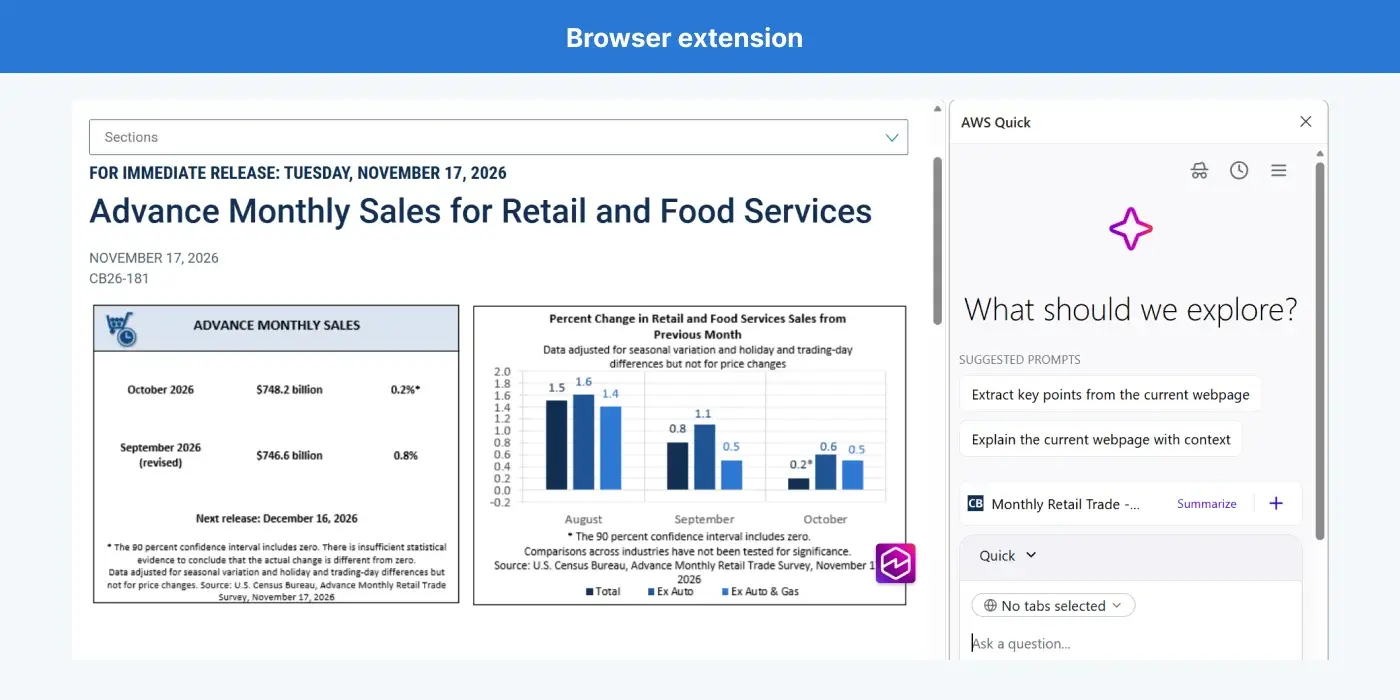
The browser extension places a chat agent in a side panel in your browser. On any page, including a competitor's website, you can ask the agent to read and summarize what is there and connect it back to your own data, without leaving the page. It can work across up to 20 webpages and uploaded files at once, so you can pull several competitor pages and your own documents into a single line of questioning. It also links to tools like PowerPoint and Excel, so you can go from a question to an output in one place. For market and AI agent driven competitor research, this means the research and the analysis happen in the same window rather than across several tabs and platforms.
Why this matters for analysts and decision-makers
Put together, Research mode and the extensions change the economics of research work in four ways:
- Speed. A prompt and a short wait replace days of manual research.
- Context. Analysis happens inside Excel and the browser, with no switching between platforms.
- Credibility. Research reports come with their sources, and you can limit them to sites you trust.
- Benchmarking. Internal data is compared against external market data in a single step, which is the part teams usually find hardest to do well.
Getting started with Amazon Quick
Amazon Quick delivers the most value when your data is connected cleanly and your research and reporting workflows are set up to match how your team actually works. NeenOpal helps teams adopt Amazon Quick end to end, from AWS setup and data engineering through to the research, extension and AI agent workflows that turn it into a daily habit. If you are planning to roll out Amazon Quick, our Amazon Quick consulting services can help you get there faster. You can also read how Quick handles hands-off reporting in our guide to Amazon Quick automation.
Frequently asked questions
What is Amazon Quick Research?
Amazon Quick Research is a mode in Amazon Quick that generates a full business research report from a plain-language prompt, comparing your internal data against external market data and citing its sources.
How long does an Amazon Quick research report take?
It depends on the depth you choose. A Fast run takes about 5 to 10 minutes for a medium-depth report, and a Deep run takes about 20 to 30 minutes for a higher-depth report, rather than the days a manual study would take.
Does Amazon Quick cite its sources?
Yes. The research report includes the sources it used, and you can scope the research to specific materials and websites so it draws only on sources you trust.
What are Amazon Quick extensions?
They are integrations that bring the Quick agent into tools you already use, most notably an Excel extension and a browser extension, so you can analyze data without switching to the Amazon platform.
Can I use Amazon Quick inside Excel?
Yes. The Excel extension lets you ask the Quick agent questions about your data directly in Excel instead of moving it onto the Amazon platform first.
Can Amazon Quick do competitor research?
Yes. The browser extension lets you query the agent on any page, including a competitor's website, and connect what it finds back to your own data, across up to 20 webpages and uploaded files at once.